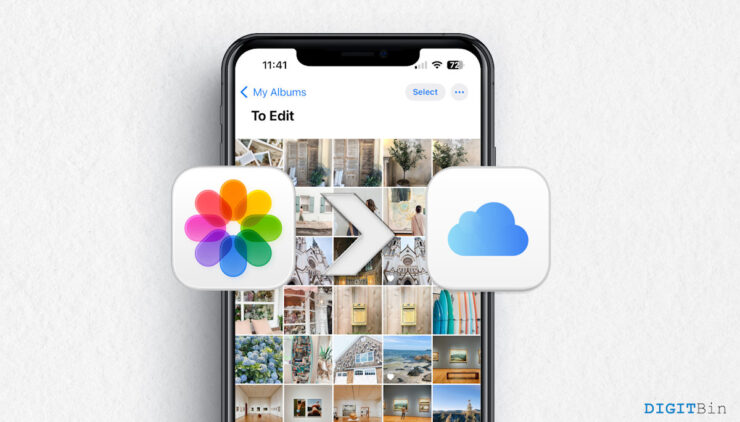
I recently hit a wall with my iCloud storage, and my iPhone kept showing the “iCloud Storage Full” pop-up even though I felt I didn’t have that many photos in my gallery. When I checked closely, the real issue wasn’t my photos at all; it was videos. Long 4K clips, random screen recordings, and old vacation videos were quietly eating up most of my 5GB free iCloud space.
I had around 3,000 photos that I genuinely wanted backed up for safety, but because the videos were hogging all the space, the photos simply weren’t uploading. That’s when I decided I needed a proper solution: a way to upload only photos to iCloud, while completely skipping videos. But Apple doesn’t give a direct “photos only” toggle, which makes the whole process tricky.
Can You Upload only your Photos to iCloud (not video)?
By default, iCloud syncs all kinds of photos and videos that are present in your iPhone gallery. And when you hit the free 5 GB limit, you have to purchase additional storage via a monthly subscription. But a monthly subscription can be costly, and I did not want to go that route. So, I decided to search for a proper solution: a way to upload only photos to iCloud, while completely skipping videos.
I started testing different methods. Some worked well, some were messy, and some were just not worth the effort. One of the working method require you to create a new album. We already explained it in our previous guide – how to back up only selected photos to iCloud on iPhone. However, this method is also somewhat cumbersome, as you can’t spend time every day moving specific photos to an album that is synced to iCloud.
Eventually, I figured out that the key is to separate where the videos are stored. If the videos stay in your gallery, iCloud will try to upload them. But if you move them somewhere else, you can ultimately trick iCloud into syncing only photos. The best part is that I didn’t need to delete my videos. I just stored videos somewhere else.
Step 1: Go to Gallery > videos > select all.
Step 2: Click on share > Files > save them to any folder inside your iPhone.
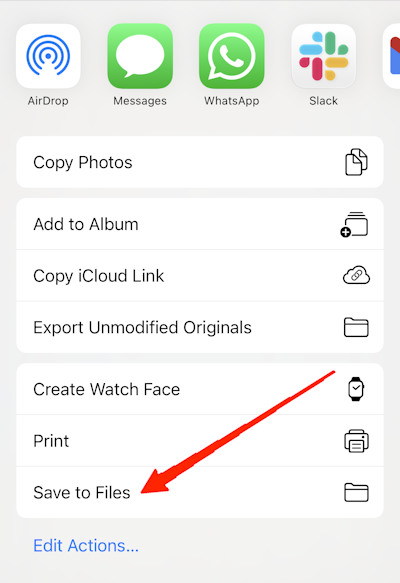
Step 3: Now go back to the gallery and delete all video files.
Step 4: Once videos are deleted from the gallery, delete them from the recently deleted folder as well.
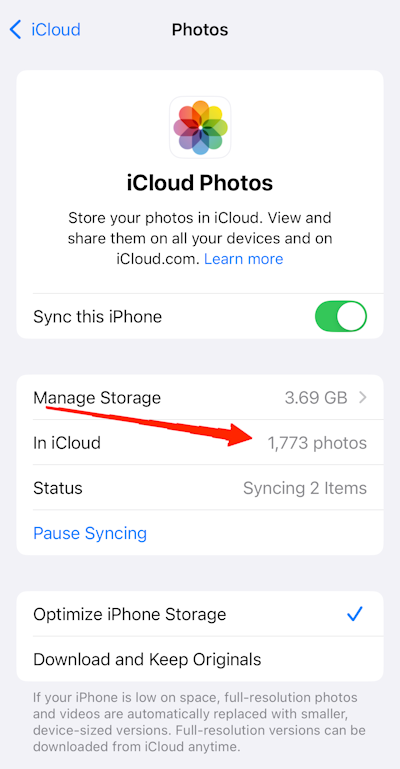
Step 5: Wait for iCloud to notice these changes and sync accordingly.
Now, all your videos are saved inside your iPhone locally. And iCloud will now sync all the photos that are present in your gallery.
Conclusion
The whole journey made me realize how hidden and confusing Apple’s gallery syncing can be, especially when someone just wants to protect their photo memories without paying for extra storage. The above method will not only save you money in purchasing additional storage, but you also don’t need to delete your videos. It’s a small adjustment, but it makes a huge difference.
If you've any thoughts on How to Upload only your Photos to iCloud (not video)?, then feel free to drop in below comment box. Also, please subscribe to our DigitBin YouTube channel for videos tutorials. Cheers!