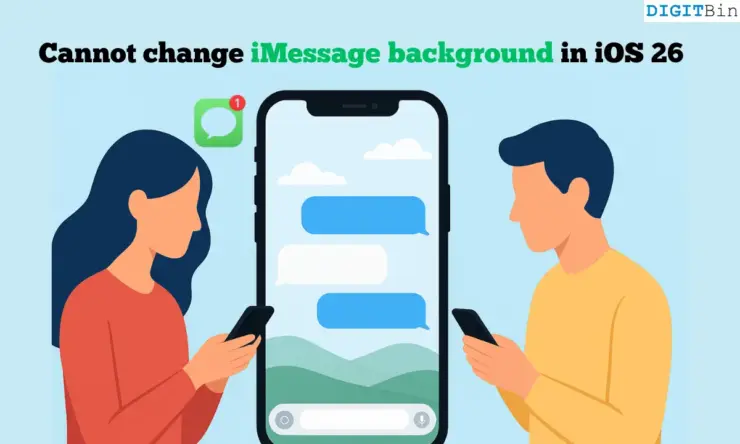
One of the new iOS 26 features allows you to set a background image on the Messages app. You don’t have to view the chats on a plain color boring background, such as black or white. Have you tried the new feature on your iPhone yet?
You may think that’s not a new feature, and it has been there on WhatsApp and Telegram for a while. Well, Apple’s iMessage background image is a bit different from those of other instant messaging apps. Along with you, the recipient of your message can also view the background image that you set in the Messages app background. This is not possible on WhatsApp or Telegram.
Here is the issue with this iOS feature. Several users have been reporting that they cannot change the iMessage background in iOS 26. I have explained the possible reason for this problem and offered some fixes that you can implement to set a background image on the iPhone Messages app.
Reasons why you cannot change the iMessage background in iOS 26
The way I see it, the issue with the iMessage background is two-fold. Most iPhone users cannot see the option to change the background of the Messages app.
Secondly, if a user on one end of the conversation has set a background image, the user on the other end cannot view it.
Often, users running the beta builds or developer versions of iOS are prone to facing such bugs. Also, the chat background image feature is not supported on SMS or RCS chats. It works only when the message exchange is taking place between the iMessage users with iPhone/iPad/Mac.
Ways to change the iMessage background on iPhone
I have mentioned some necessary fixes that should resolve the issue with changing the iMessage background in the Messages app.
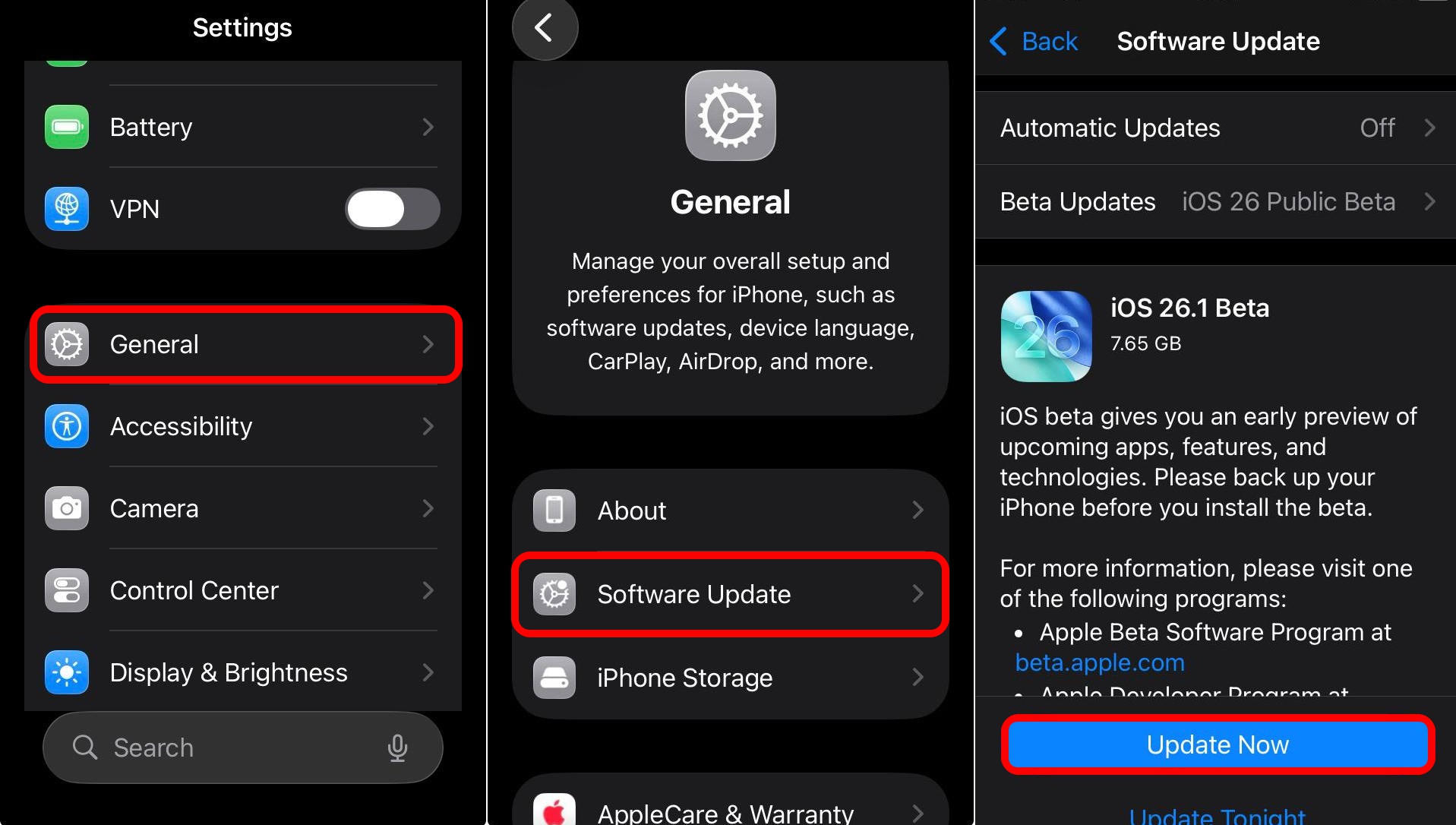
Install the iOS 26 update on iPhone
The feature to change the background in iMessage is exclusively supported on iOS 26. You must install the latest build of the operating system on your iPhone to use the feature.
- Launch the Settings app.
- Go to General > Software Update.
- Press Update Now to download the iOS update.

Enable conversation backgrounds in the iOS settings
Enable the conversation backgrounds feature on your iPhone to add a custom background in the Messages app.
- Go to the Settings app.
- Access Apps > Messages.
- Scroll to Conversation Backgrounds and press the toggle to enable the feature.
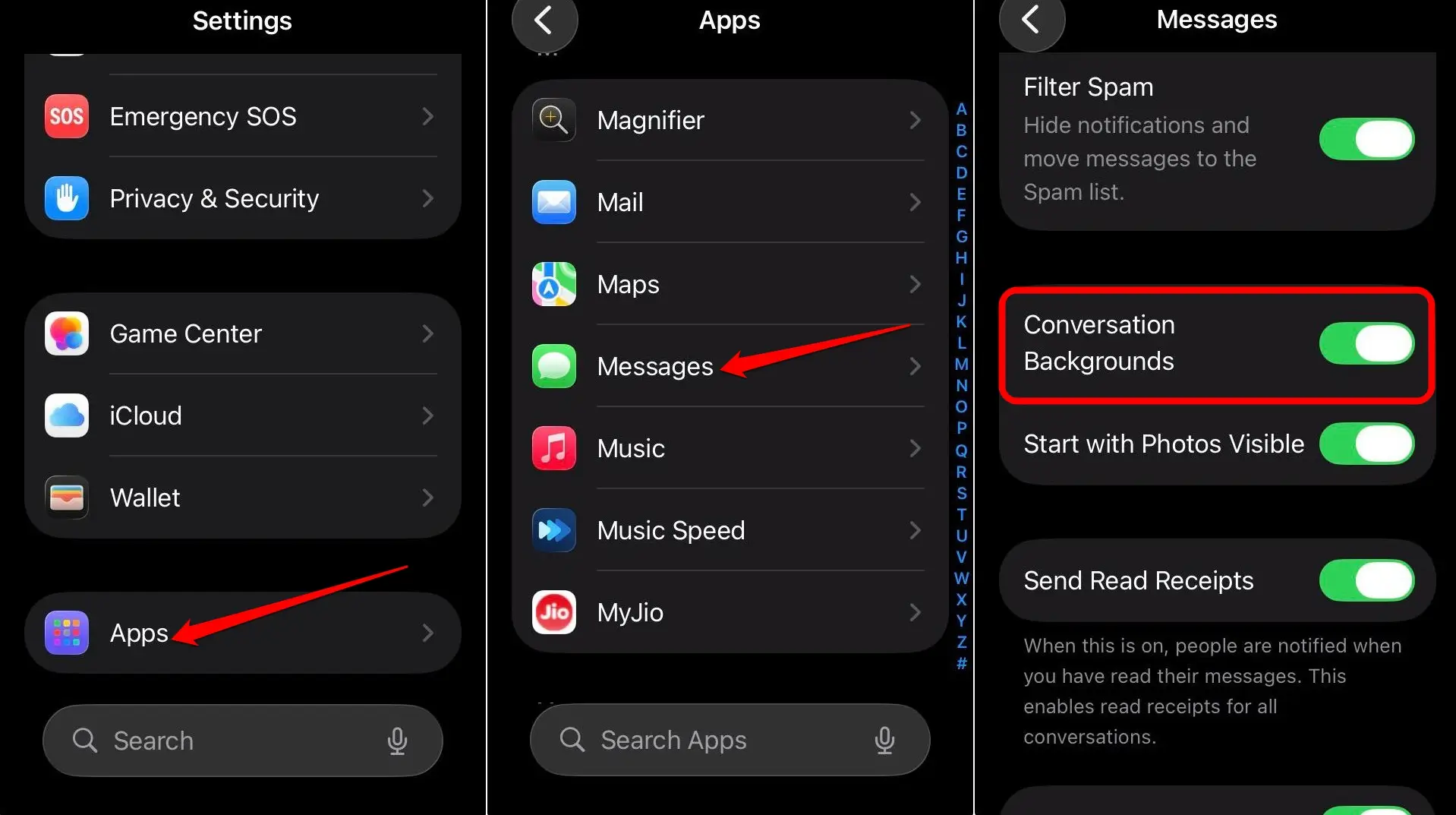

Now, upon accessing the Messages app and tapping on your username at the top, you will see the option ”Backgrounds” next to the “Info” tab.
NOTE: This option will be visible only on iPhones running iOS 26.
Force close and launch the Messages app
Due to random bugs, some iOS 26 features (setting a background on Messages in our case) may not work. Often, force-closing the affected app, whose respective features are not working, can instantly resolve the problem.
To force close the Messages app on iPhone (iPhones without a home button),
- Swipe up on the screen to view the active apps.
- Scroll left or right to find the card for the Messages app.
- Hold and swipe up the Messages app card to close it.
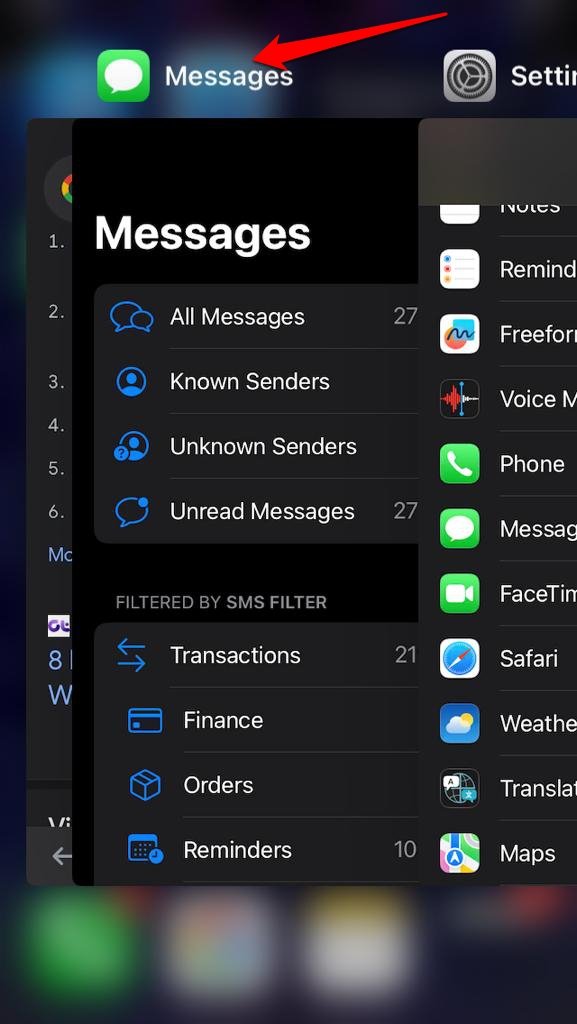

- Access the App Library and launch the Messages app.
For iPhones with a home button, double-tap it to view the app cards for the active apps. Navigate left or right to the Messages app, hold and swipe up to close it instantly. Relaunch the app from the App Library. Check if you can now set a background on your iMessage.
Restart the iPhone
I suggest you restart your iPhone to eliminate any glitches that might be preventing you from viewing the background image of iMessage. Often, you can fix minor tech snags on the iPhone with a reboot. Check out the detailed steps to restart your iPhone.
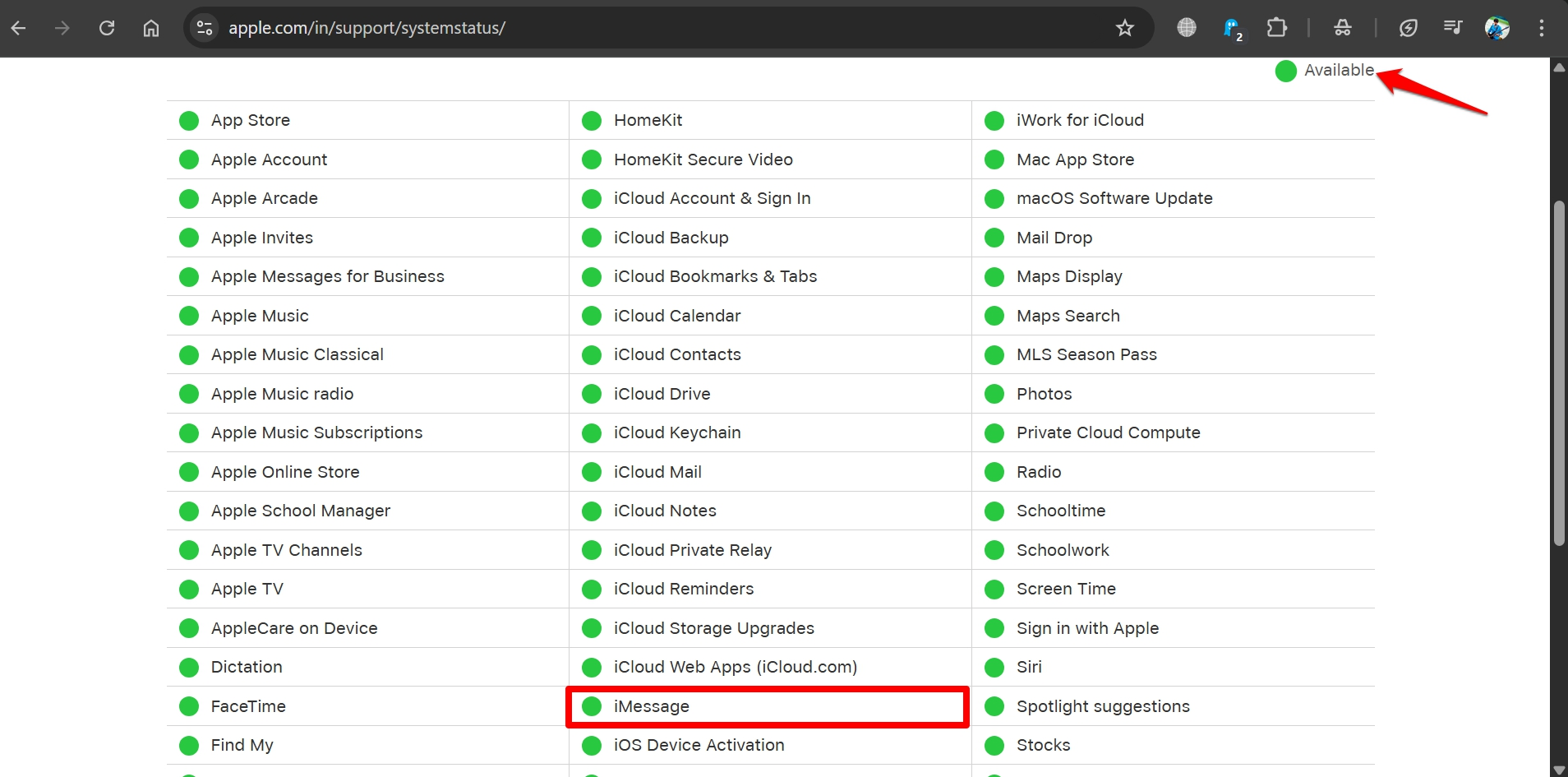
Check if the iMessage server is down
Even with the conversation background enabled, due to issues at the server end, iMessage and some of its features may not work at times. You can check the Apple System Status to learn if iMessage servers are down. If that’s the case, wait until the servers are up again.
Reset all settings
As a last mode of troubleshooting, you can reset the iPhone to its factory settings if none of the other fixes work. Take a backup of your iPhone data to iCloud before you perform the iOS reset.
To reset all settings on the iPhone,
- Open the Settings app.
- Go to General > Transfer and Reset.
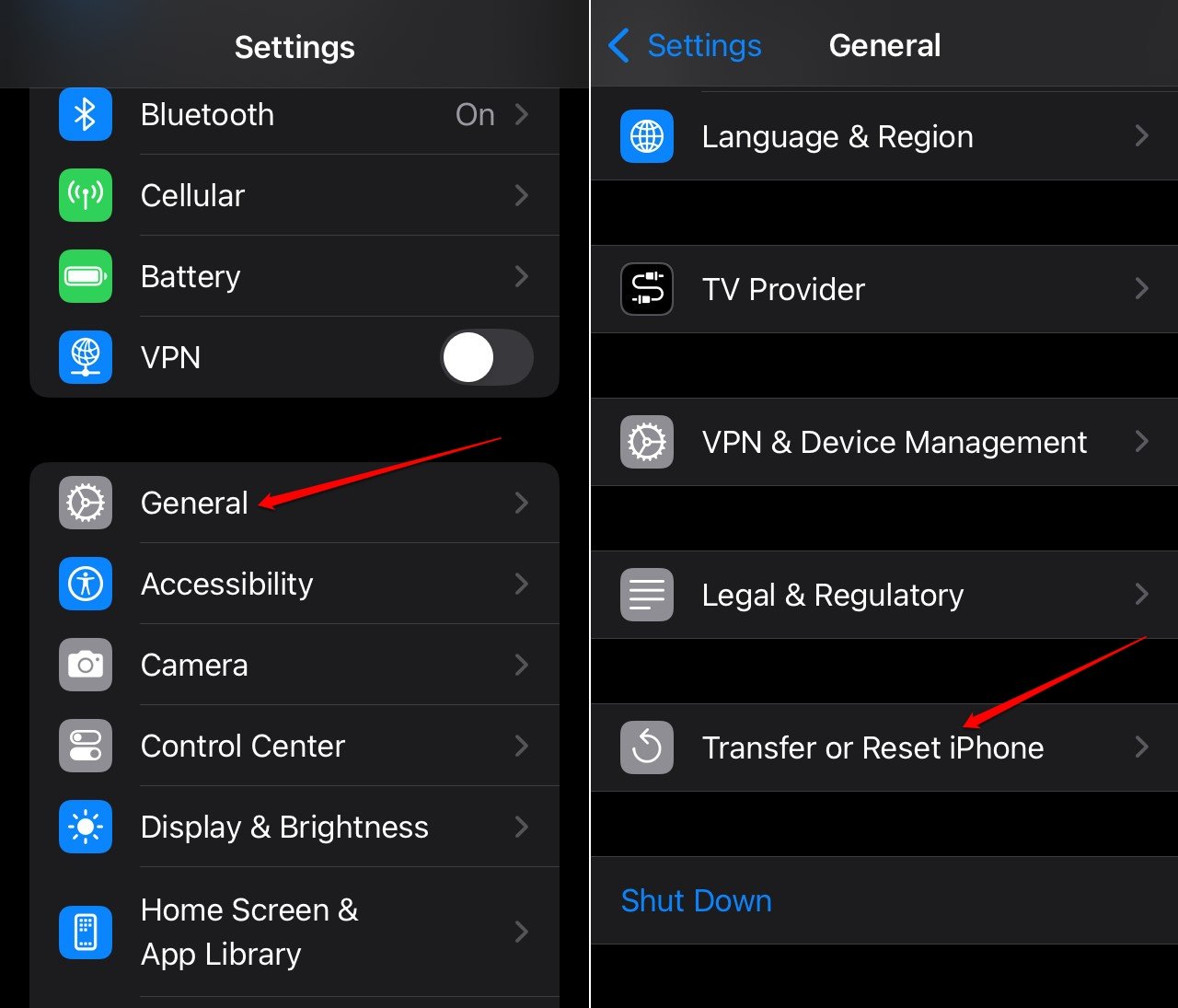

- Select Reset > Reset All Settings.
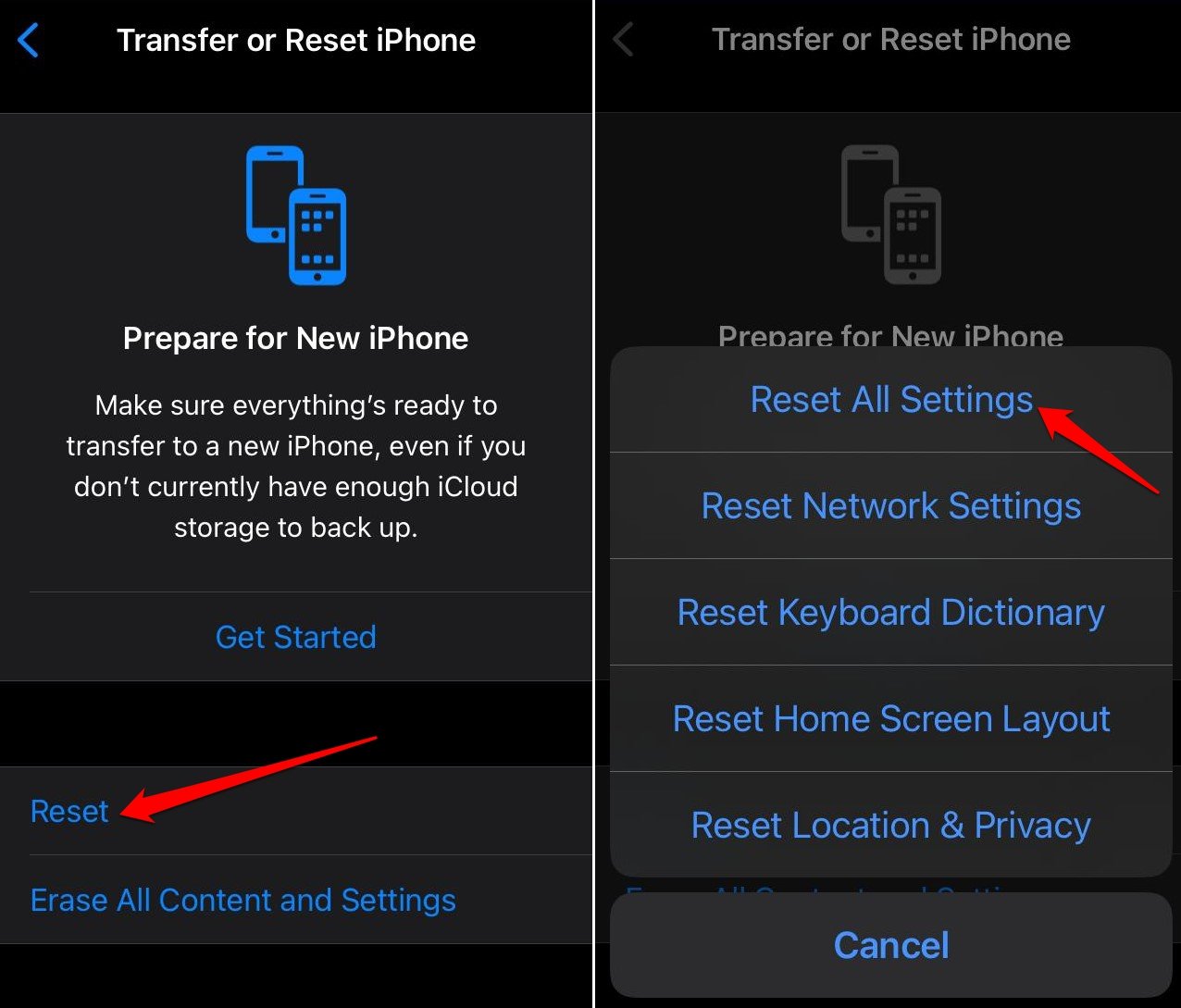

- Enter the passcode to proceed with the reset.
Launch the Messages app after the iPhone reboots to check if the chat background image can now be set.
Chat on iMessage with a nice background
Sometimes, unforeseen technical glitches can set you back from experiencing new features on an operating system. This seems to be the case with the new iOS 26. Implement one or more of the iPhone troubleshooting tips I have shared to fix the issue with iMessage and set a cool background for your chats. Let me know in the comments which trick solved the problem for you.
If you've any thoughts on How to Fix: Cannot change the iMessage background in iOS 26, then feel free to drop in below comment box. Also, please subscribe to our DigitBin YouTube channel for videos tutorials. Cheers!