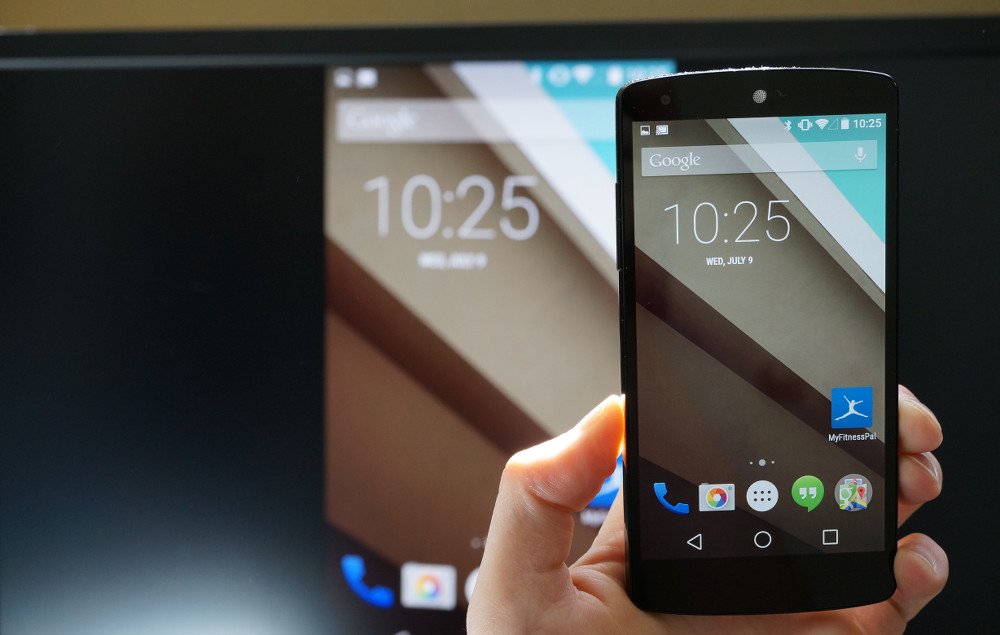
Screen Cast Motorola with Samsung Smart TV
It is always a great experience to watch your favourite movies, TV shows and other media programming on the big screen. So, if you are looking for a guide to Wireless Display, Screen Mirror or Mira Cast your Motorola Moto on Samsung Smart TV through wireless Wi-Fi network then you have come to right place because I have provided a complete step-by-step guide to screencast all the Motorola devices.
Miracast is available on all the Motorola mobiles with Cast option under settings. The devices include Moto C Plus, Moto C, Moto G5 Plus,G5, Moto M, Moto E3, Power, Moto Z Play, Force, Moto Z, Moto G4, Plus, Turbo, Moto X, Play, Force, Style, Moto G4, G3, G etc. (Some devices may not be listed here which may support screen mirror or
Note: All the Motorola smartphones are not listed above and some devices listed above may not support Screencast.
If the device has screen mirror option then only your device is applicable to cast the display on Smart TV. So to check that,
Sometimes the Wireless Display may be present under ‘More’ or ‘Additional Settings’ option of Settings.
Turn on Wi-Fi and open Advanced Option
Open Wi-Fi Direct
Network
Wi-Fi Direct and Screen Mirroring
Connect your device with TV
Click on Cast under Display
Device and SmartTV connecting
Screen Mirrored
Note & Conclusion: I hope the post was helpful. Do comment below for any of the assistance required.
Make sure you connected Wi-Fi direct with Samsung Smart TV.



View Comments
Hi,
I followed steps given above to connect my Moto M to TV using amazon firestick. But could not succeed. From google search, I understood that root file to be updated to make screen cast to work in MOTO M. But I could not find steps to be followed for MOTO M device. Please help me in getting solution for my problem of connecting MOTO M to TV through firestick.
thanks...
worked for me. mine is moto g5 plus.
for those who couldn't do it, install smart view app from play store first. once you are done, follow the above procedure until step no. 11, then open smart view app, you will see your tv name there.
ps. your screen will not be mirrored, but you'll be able to cast your mobile media.
:)