
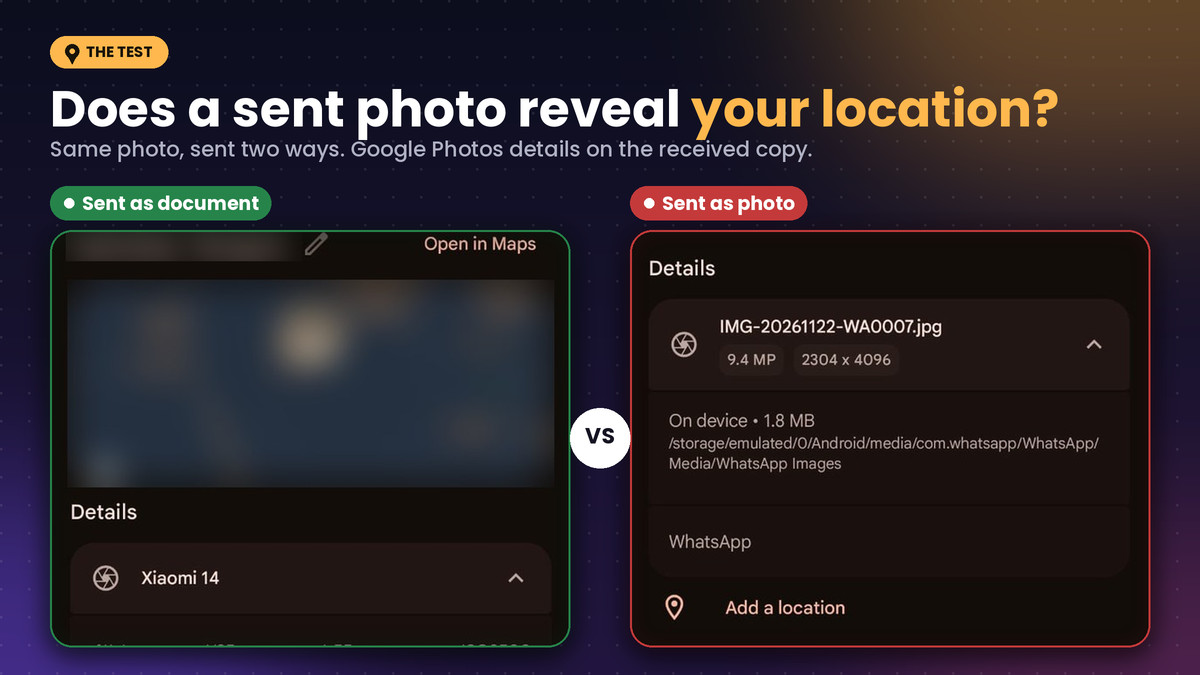
I was at a place and I wanted some time away from my friends, so I had not told them where I was. About fifteen minutes later, one of them asked me for a photo of my watch. He wanted to check the color, and he asked for it in document form.
I had no idea why that mattered, so I sent it that way. Then they called me back and said they knew where I was.
That was when I understood that a photo carries something with it when you send it. So I tested it properly, starting with one question: does sending a photo reveal your location?
I sent the same two geotagged photos from my Xiaomi 14 to a Nothing phone through WhatsApp, Gmail, and Instagram, then checked every copy that arrived.
TL;DR: A watch photo I sent as a WhatsApp document let my friends find where I was, so I tested it. In my test, the document copies showed a location in Google Photos and the normal photo copies did not. Gmail kept the file but no location showed, and Instagram shrank the photos and showed no details. Check one received copy before you trust any app.
The photo that gave my location away
The watch photo looked like any other photo I send, and I only sent it as a document because he asked. Until then I had thought of a photo as just a picture, and I had never opened its Details screen to look for a map.
I still do not know exactly what my friend saw on his end, because I was not holding his phone. What I could do was run the same kind of send between two phones I control.
A map in Google Photos can come from the camera, a location added by hand, or an estimate from landmarks, Google says. Google Photos also cannot remove a location your camera saved, so only the file’s own metadata tells the whole story.
On my Xiaomi 14 the Save location info switch sits under Camera settings, in the General tab, and it was on when I checked.
How I tested photo location
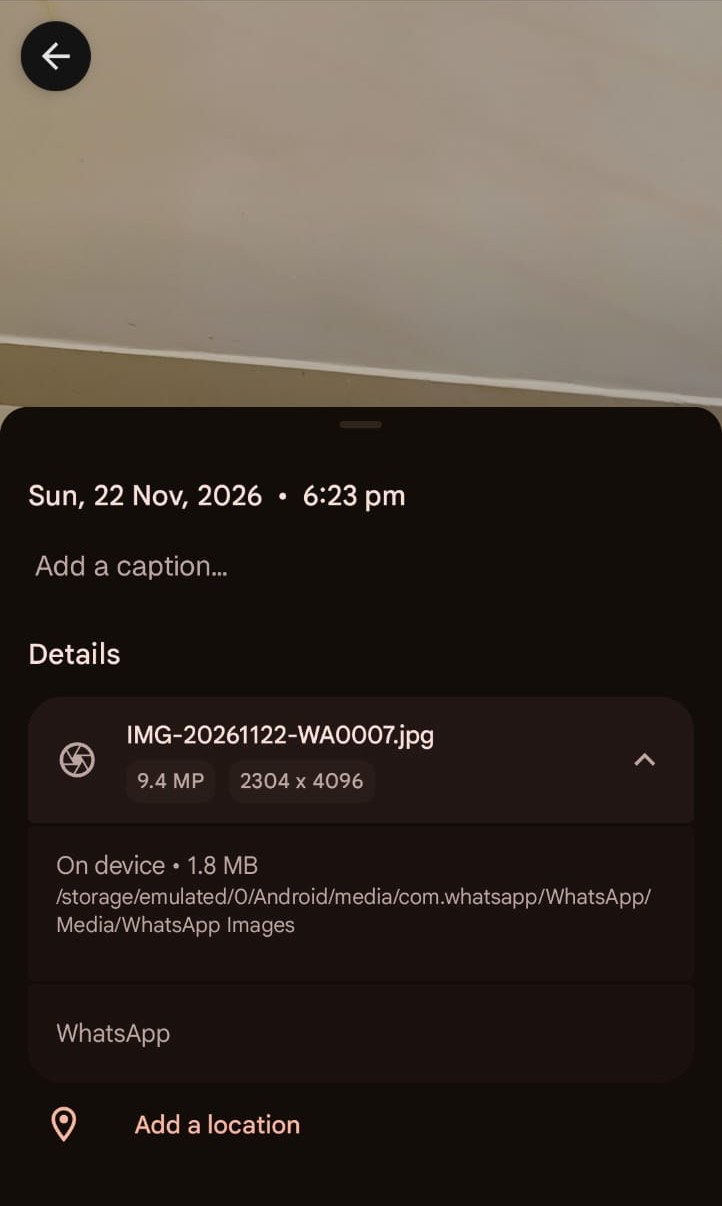
On November 22 I took two photos on the Xiaomi 14, a dim shot of an arcade game machine at 2.7 MB and a plain wall picture at 1.8 MB. Both were 2304×4096, and both showed a place in the Gallery Details screen.
I sent each one four ways to a Nothing phone and opened every received copy in Google Photos. HD was on for the WhatsApp normal photo, and I attached the Gmail copies through the Google Photos picker. I looked at the map, the camera details, the file size, and the folder it landed in.
This was one phone pair on one day, so it is my result and not a rule for every phone. I left Telegram out, and I judged location by what Google Photos showed, not by reading the file’s metadata.
| Sending method | File size | Camera details | Location in Google Photos |
|---|---|---|---|
| WhatsApp as document | Same as original | Shown | Map shown |
| WhatsApp as photo | Same as original | Not shown | No location |
| Gmail attachment | Same as original | Shown | No location |
| Instagram direct message | 290 kB and 97 kB | Not shown | No location |
Does WhatsApp remove photo location?
In my test, the normal photo copies showed no location and the document copies did. The document copies arrived with their original file names and the Xiaomi 14 camera details, and Google Photos drew a map for them.
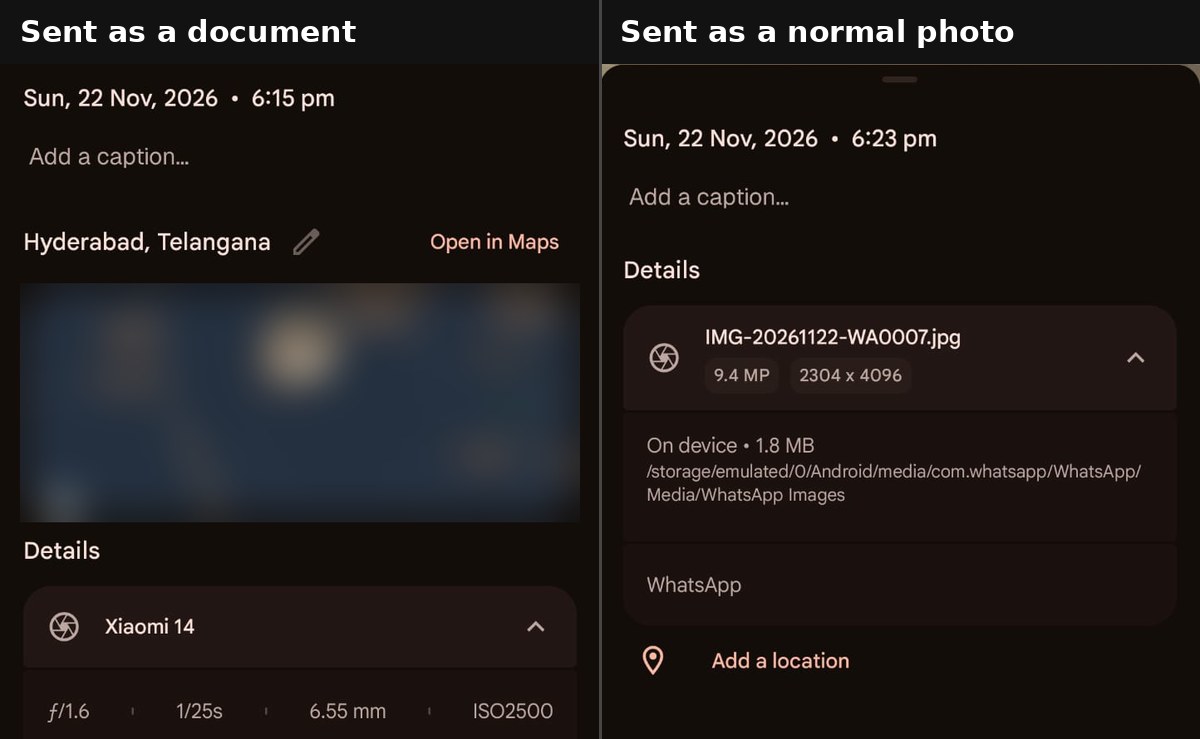
The normal photo copies had neither, and they landed in WhatsApp Images instead of WhatsApp Documents under names WhatsApp had changed.
On screen the two versions looked identical, and the difference only showed up in Details, where one had a map and the other offered an Add a location button.
Why the document route is the risky one
People pick Document in WhatsApp to keep full quality, which is why my friend asked for the watch photo that way, and in my test it carried the location along with the file.
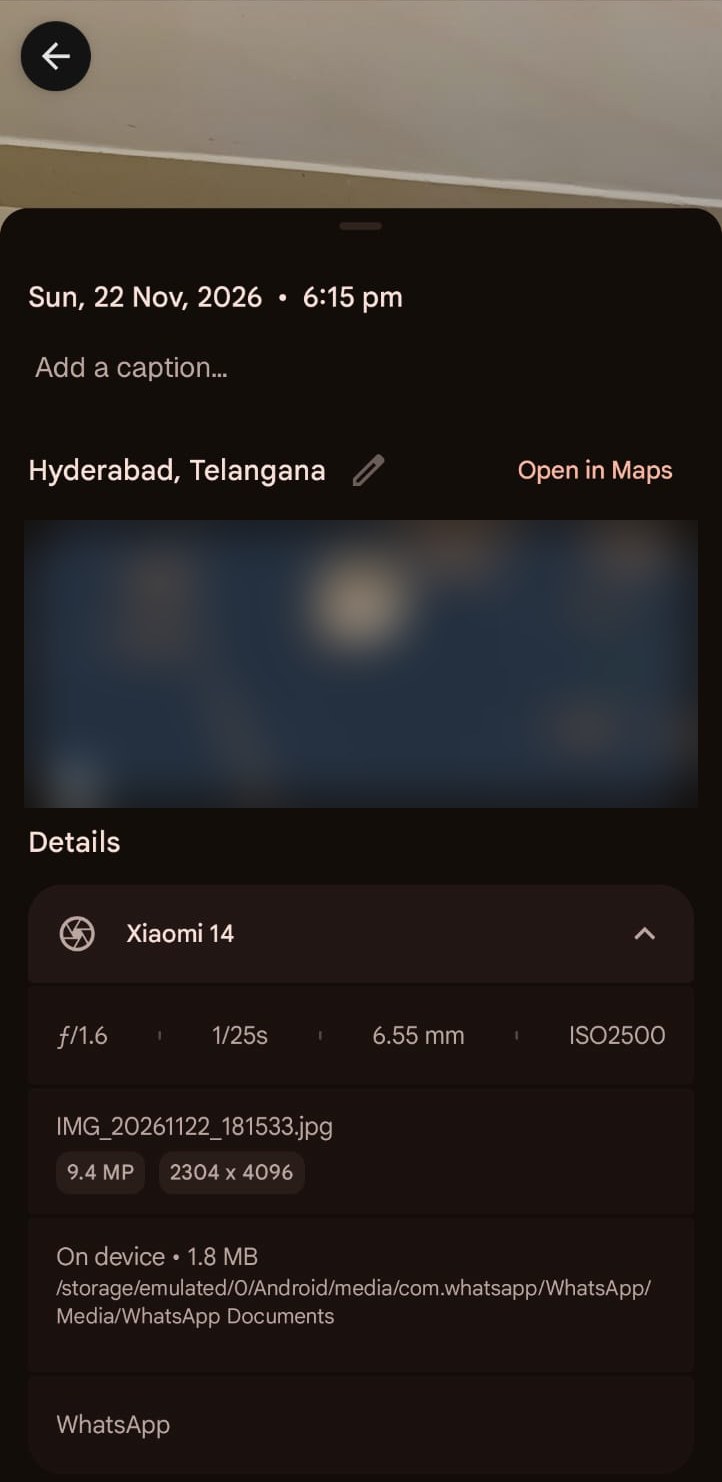
The document copies matched the originals on file name, size, and resolution. The normal photo copies kept their size and resolution too, which I did not expect.
I had WhatsApp’s HD option on for that send, which keeps the original resolution and may explain part of that, but I did not dig into it and an unchanged size does not prove the file passed through untouched.
The risk is for photos taken at home or at work, because a classifieds listing photo or a picture of a package at the door points at the building, not the subject.
Gmail kept the file but not the location
Gmail delivered both files with their original names, the Xiaomi 14 camera details, and the same sizes, yet Google Photos showed no location. Most guides say email keeps everything, and that is what I expected.
I cannot say whether Gmail removed the GPS tags or Google Photos simply did not show them. Android hides photo location from apps by default, according to Google, which is separate from the Android location permissions you grant for GPS.
The system photo picker also redacts location metadata by default unless an app asks for it, according to Google’s Android reference. I attached the photos through the Google Photos picker, so my Gmail result may say more about that route than about Gmail itself. I did not confirm that this picker removes location, and I did not test attaching from Files.
Instagram shrinks the photo and shows no details
Instagram shrank both photos hard, and the received copies showed no camera details and no location. I sent them as normal photos in a direct message.
The arcade photo went from 2.7 MB to 290 kB and the wall photo from 1.8 MB to 97 kB, while the resolution dropped from 2304×4096 to 1200×2133.
The files saved into a Pictures folder named after the app and looked normal in the viewer, which is the catch, because nothing looks different until you open Details.
Resizing a photo does not remove its location
Instagram shrinking the photos and dropping the location raised a question: does resizing alone strip location? To check, I had a Linux test machine run a similar test on a photo with a made up GPS tag, which was a lab check and not one of my phone photos.
Resizing with ImageMagick kept the location tags, and adding its strip option removed them. Re-encoding with ffmpeg removed them, while a straight copy kept them.
Shrinking a photo is not the same as cleaning it.
What to check before your next share
Open one received copy in Google Photos on the other phone and swipe up, and treat a map as a strong sign, not proof.
- Need the original file? Send a document and expect the location to travel with it.
- Want it gone? Turn off Save location info before you shoot, or remove the metadata first, since one app’s behavior is no guarantee.
- Already have the file? Google Photos cannot remove a camera location, so use a metadata editor.
- Using Gmail? Check the received copy, since no location showed in my test.
Our Chrome privacy opt-out test showed a similar gap.
Send yourself one geotagged photo each way you share, then look for the map.


