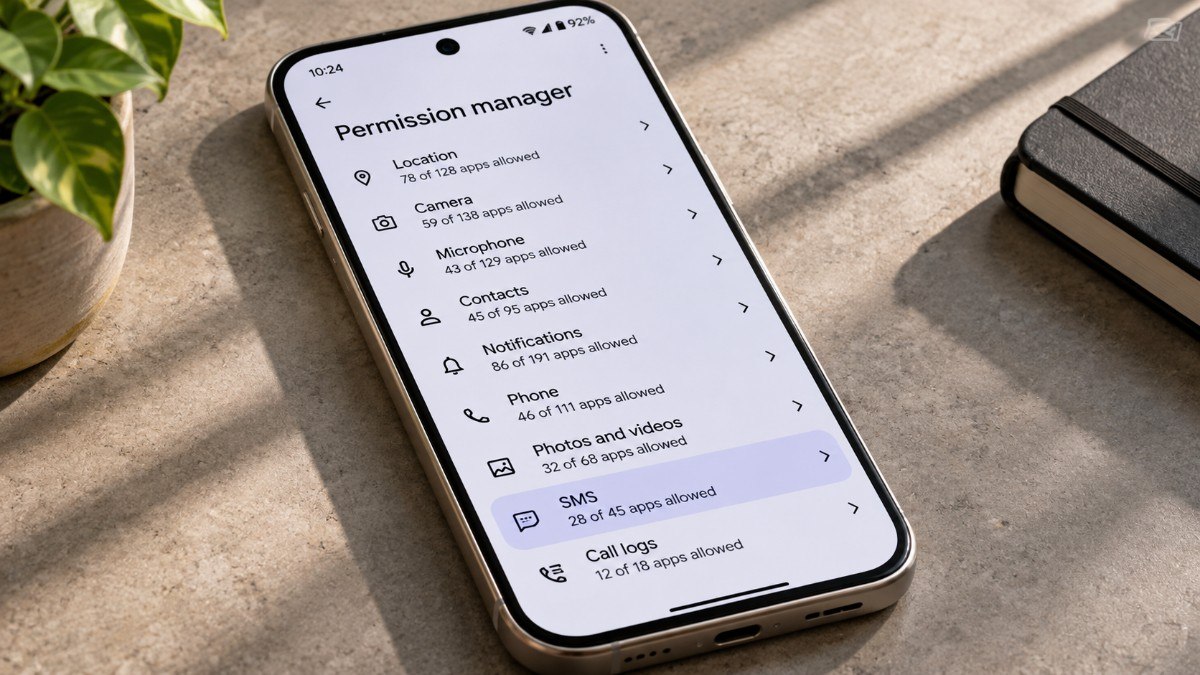
Every permission prompt asks for two seconds of attention and usually gets one. The Permission manager is where all those Android app permissions pile up, so I finally opened it on my Android 16 phone to read the totals.
The SMS screen stopped me. It showed 28 of 45 apps allowed to use the SMS permission, which Android describes as sending and viewing text messages, and that number is what this article is built around.
This is one phone, so your counts will differ. Below is what I found, what Android’s own source files say about how permissions grew, and how to run the same check yourself.
TL;DR: Android’s runtime permissions grew from 31 in Android 10 to 50 in Android 16, but seven of the 19 additions are for XR headsets. The bigger finding on my phone was SMS, which 28 of 45 requesting apps had, with at least 11 using it in the past day. That does not prove misuse, but the SMS list is worth five minutes.
Android app permissions have grown since Android 10
Android’s runtime permissions, the ones that trigger a prompt, went from 31 in Android 10 to 50 in Android 16. The base manifest in the Android source for each release also shows total declared permissions rising from 533 to 1,029.
Most of that total is system-only and never reaches a prompt. Of the 19 added prompts, seven are for Android XR headsets, covering eye, face, hand and head tracking plus scene understanding, and Google lists them as dangerous permissions that apps must request at runtime.
That leaves 12 prompts that are not headset specific, spread across four releases.
| Release | New prompting permissions | Total prompts |
|---|---|---|
| Android 10 | Baseline | 31 |
| Android 11 | None | 31 |
| Android 12 | Bluetooth scan, connect and advertise, plus UWB ranging | 35 |
| Android 13 | Notifications, nearby Wi-Fi devices, photos, video, audio and background body sensors | 41 |
| Android 14 | Selected photos and videos access | 42 |
| Android 15 | None | 42 |
| Android 16 | Ranging, plus seven XR tracking permissions | 50 |
Several new prompts exist so apps can ask for less
Android 13 replaced broad storage access with separate photo, video and audio permissions for apps that target it, and added a nearby Wi-Fi devices permission so apps need not ask for location. Android 14 then added selected photos and videos access.
Not every addition narrows something. The Android 13 notifications prompt simply adds a question apps did not have to ask before.
Apps that already held storage access get the matching media permissions automatically on upgrade, so your old taps carry forward. Android 16’s single ranging permission sits in the nearby devices group.
What the Permission manager showed on my phone
The 14 listed permission groups on my phone add up to 480 allowed app and permission pairs, leaving out the Additional permissions bucket. Location was allowed for 78 of 128 apps, camera for 59 of 138 and microphone for 43 of 129.
Notifications were the widest at 86 of 191 apps, while Health, fitness and wellness was the narrowest at 0 of 7. That spread says more about what I installed than about Android, and our Contacts and Photos test covers what follows once contacts access is granted.
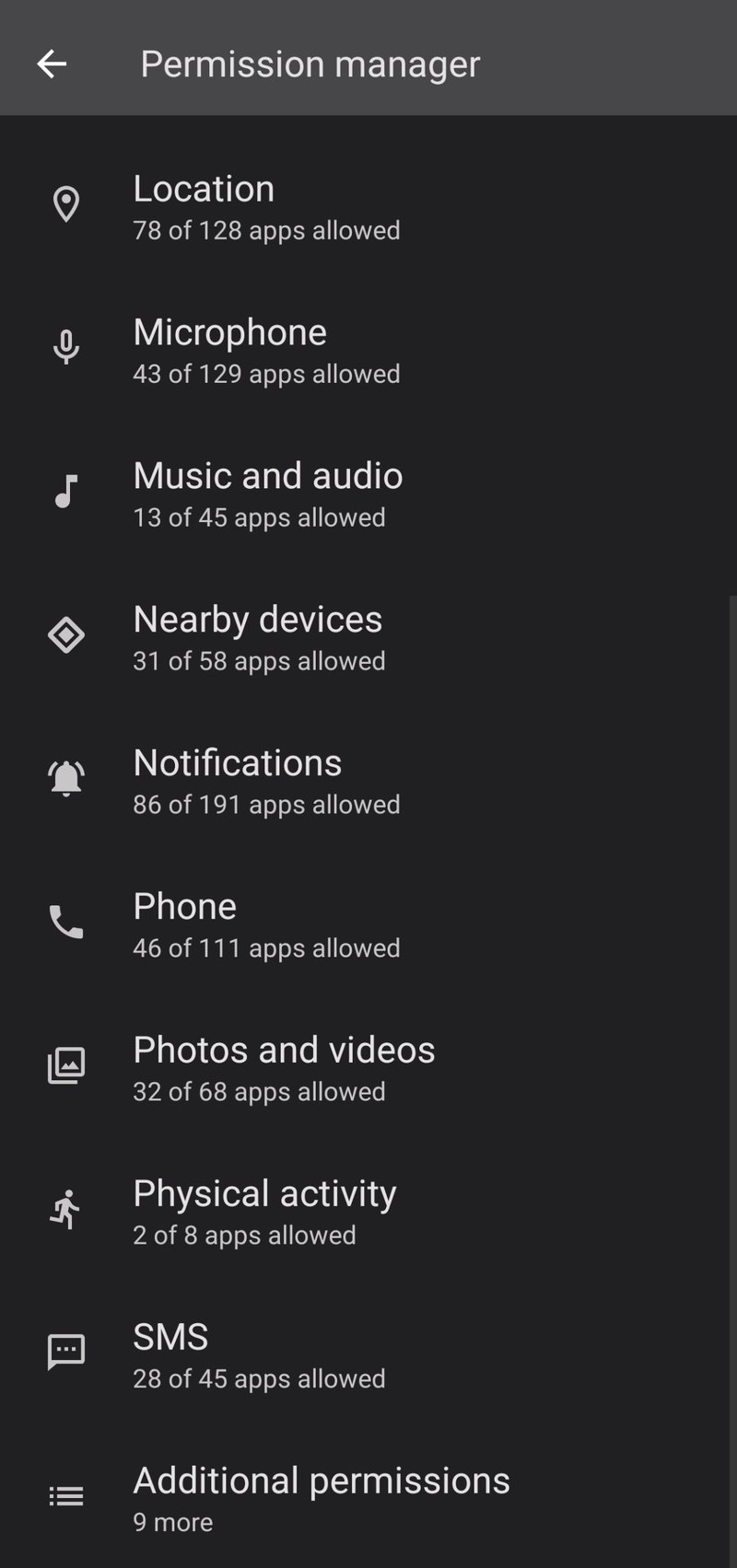
| Permission | Apps allowed | Apps that ask |
|---|---|---|
| Location | 78 | 128 |
| Camera | 59 | 138 |
| Microphone | 43 | 129 |
| Contacts | 45 | 95 |
| Notifications | 86 | 191 |
| Phone | 46 | 111 |
| Photos and videos | 32 | 68 |
| SMS | 28 | 45 |
| Call logs | 12 | 18 |
The SMS list is the one worth reading
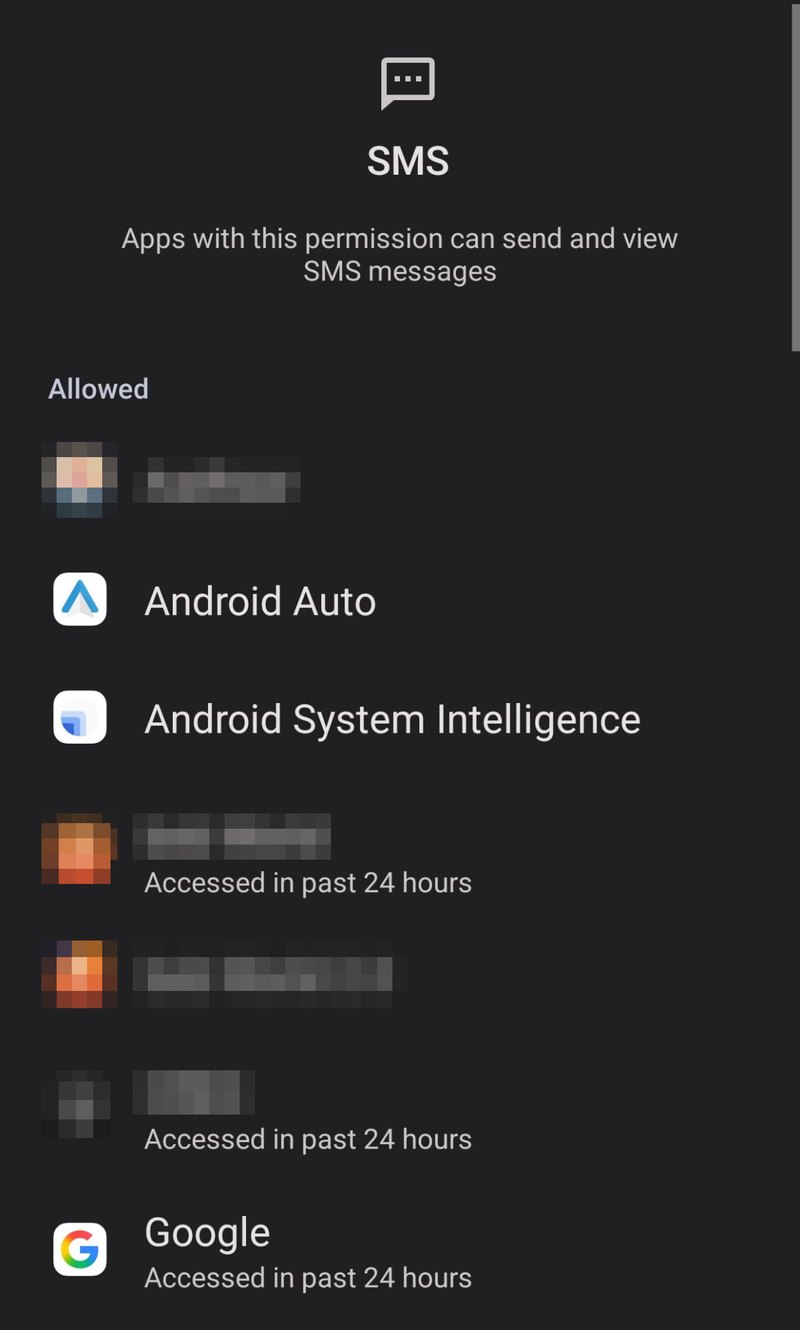
Android describes the SMS permission as letting apps send and view text messages, and 28 of the 45 apps that ask for it on my phone had it allowed. At least 11 of them showed “Accessed in past 24 hours” beside their names.
Seven of those 11 were Google apps or banking and payment apps. The other four were a carrier app, a local deals app, a motorcycle maker’s app and a fashion retailer’s app.
What Google Play allows
Google Play limits the SMS permission group to apps registered as the default SMS or Assistant handler. It also lists exception categories, including anti-smishing, backup, caller ID, connected device companions and SMS-based financial transactions, each subject to review and approval.
That is a store rule for developers, separate from the permission Android grants on your phone. Banking and payment apps fit the financial exceptions most easily, and I could not match the other four apps to a category from this screen.
What the access label does not show
The “Accessed in past 24 hours” label shows that an app used the permission, not what it read or where the data went. Android Developers has pointed developers who verify accounts by SMS to the SMS Retriever API as an alternative.
A carrier or retail app may have a reason that this screen cannot show. Several allowed apps are Xiaomi system services, and a Samsung or Pixel list will look different.
What Android 17 changes for SMS access
Android 17 extends an existing three-hour delay on one-time passcode texts to standard SMS messages. Most apps that hold the SMS permission see those messages three hours late, while the default SMS app, assistants and companion apps are exempt.
The aim is to stop OTP hijacking, and our Android 17 privacy defaults guide covers the rest of that release.
How I counted the permissions
I compared the core framework AndroidManifest.xml in Android’s open source tree at the android-10.0.0_r1 through android-16.0.0_r1 release tags. A permission counted as a prompt when its protection level starts with dangerous, and I did not exclude deprecated entries.
The seven XR permissions are the eye, face, hand, head and scene tracking entries that appear in Google’s XR developer references. Samsung and Xiaomi additions are not in these counts.
How to check your own phone
On a Pixel, open Settings, tap Security & privacy, then Privacy, then Permission manager, and tap SMS. Some versions label the middle step Privacy controls, on Samsung One UI it sits under Security and privacy, and on recent Xiaomi phones Settings, then Apps, then Permissions also works.
Read the Allowed list and tap any app you do not recognize or rarely open. Apps marked with a recent access time are the ones to look at first, then choose Don’t allow.
Removing SMS access can break one-time passcode autofill and message sync with watches, home devices or cars, so change one app at a time.
The SMS list is where I would start
I would leave SMS on for banking apps that send codes by text and for your messaging app. For a retailer or a deals app you open once a month, I would switch it to Don’t allow and see whether anything breaks.
If you only have time for one screen in the Permission manager, this is a quick place to start.