
An app freezes, the cursor turns into a spinning wheel, and the red close button does nothing. It gets frustrating. The next best option here is to forcibly close the problematic app. Knowing how to force quit on Mac fixes that in seconds, but the method you pick matters.
Some options ask the app to leave. Others end it on the spot. This guide goes from the simplest option to the last resort, using what Apple officially suggests plus a few shortcuts not every Mac user may know. These methods will help you force quit apps on macOS.
TL;DR: Press Option, Command, and Esc, pick the frozen app, and click Force Quit. If that window will not open, use the Apple menu or Option-click the app in the Dock. Activity Monitor and Terminal handle stubborn apps, and holding the power button is the last resort for a fully frozen Mac. Force Quit skips normal shutdown, so unsaved work can be lost.
Force Quit on Mac starts with the Force Quit window
Press Option, Command, and Esc together to open the Force Quit Applications window. Apple notes that on Macs with a Touch Bar, Esc sits on the left side of the Touch Bar.
Select the app marked as not responding and click Force Quit. The issue of the stuck app ends right there.
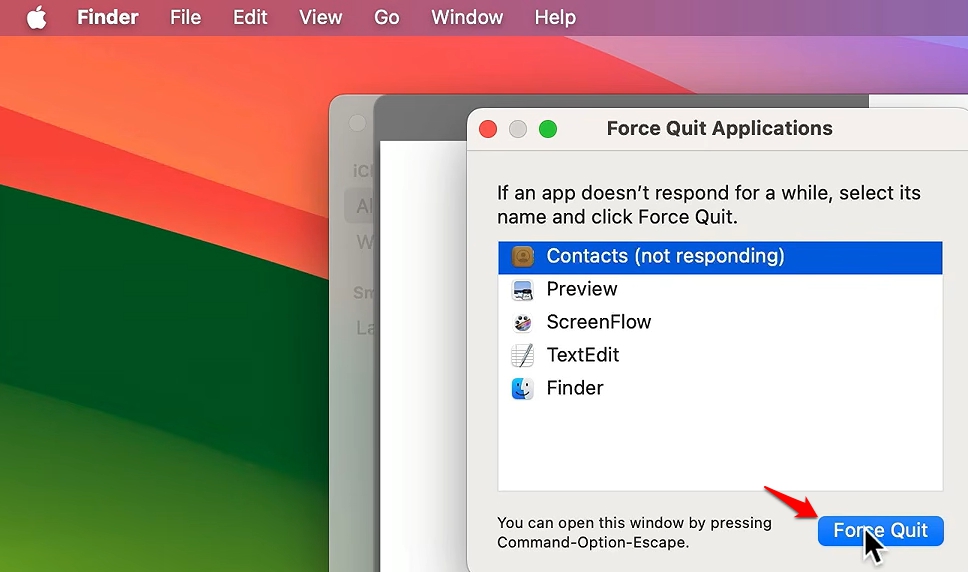
The window opens instantly even while the frozen app keeps its spinning wheel. That window belongs to the system, not the stuck app, which is why it still answers.
Here is the full ladder at a glance, from the most simple ones to the last resort.
| Method | How to start it | Best when | What it closes |
|---|---|---|---|
| Force Quit window | Option, Command, Esc | An app is not responding | The selected app |
| Apple menu | Apple menu, then Force Quit | The shortcut does not respond | The selected app |
| Dock | Option and right-click the app icon | One visible app is stuck | That app |
| Frontmost shortcut | Command, Option, Shift, Esc | The app in front is stuck | The frontmost app |
| Activity Monitor | Stop button, then Force Quit | No Dock icon or no window | Any process |
| Terminal | killall followed by the app name | Everything else failed | The named app |
| Power button | Hold for up to 10 seconds | The whole Mac is frozen | The entire Mac |
Force Quit from the Apple menu
Click the Apple menu in the top left corner and choose Force Quit to open the same window as the previous method with a mouse. This is the method you should fall back to when the keyboard shortcut does not respond.
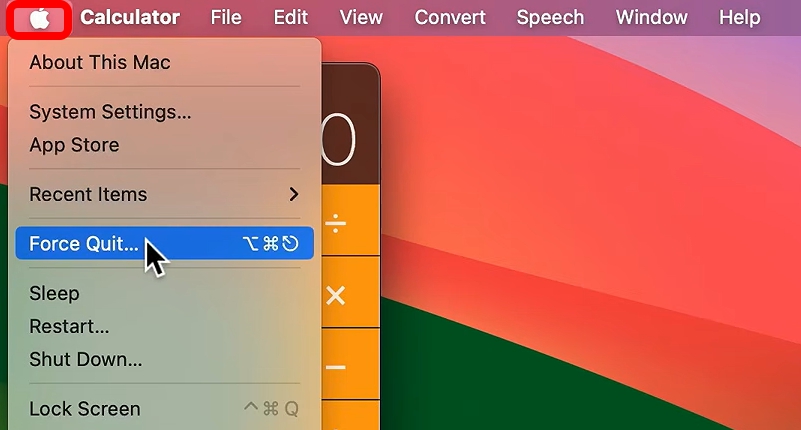
Hold Shift while the menu is open and the entry changes to Force Quit followed by the app name. That closes the frontmost app in one click, with no list to read.
Force quit from the Dock
Right-click the frozen app’s Dock icon, hold Option, and Quit turns into Force Quit. It is the quickest pointer-only option for a single app.
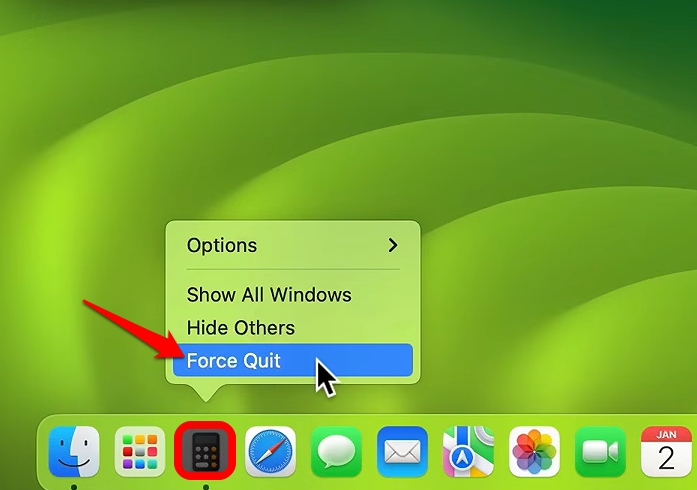
Every running app appears in the Dock, even ones you never pinned there. I reach for this route when the stuck app is plainly visible, and I do not want to scan a list of names.
The shortcut that skips the window
Command + Option + Shift + Esc force quits the frontmost app without opening any window. Hold the keys for a moment instead of tapping them. Keep holding until the app disappears. Be careful with this one. If the wrong window is in front, the wrong app gets closed.
Use Activity Monitor for stubborn apps
Activity Monitor lists every running process on your Mac. Unresponsive ones are marked Not Responding in red.
- Open the Activity Monitor on your Mac.


- Select the process > click the Stop button at the top of the process name.
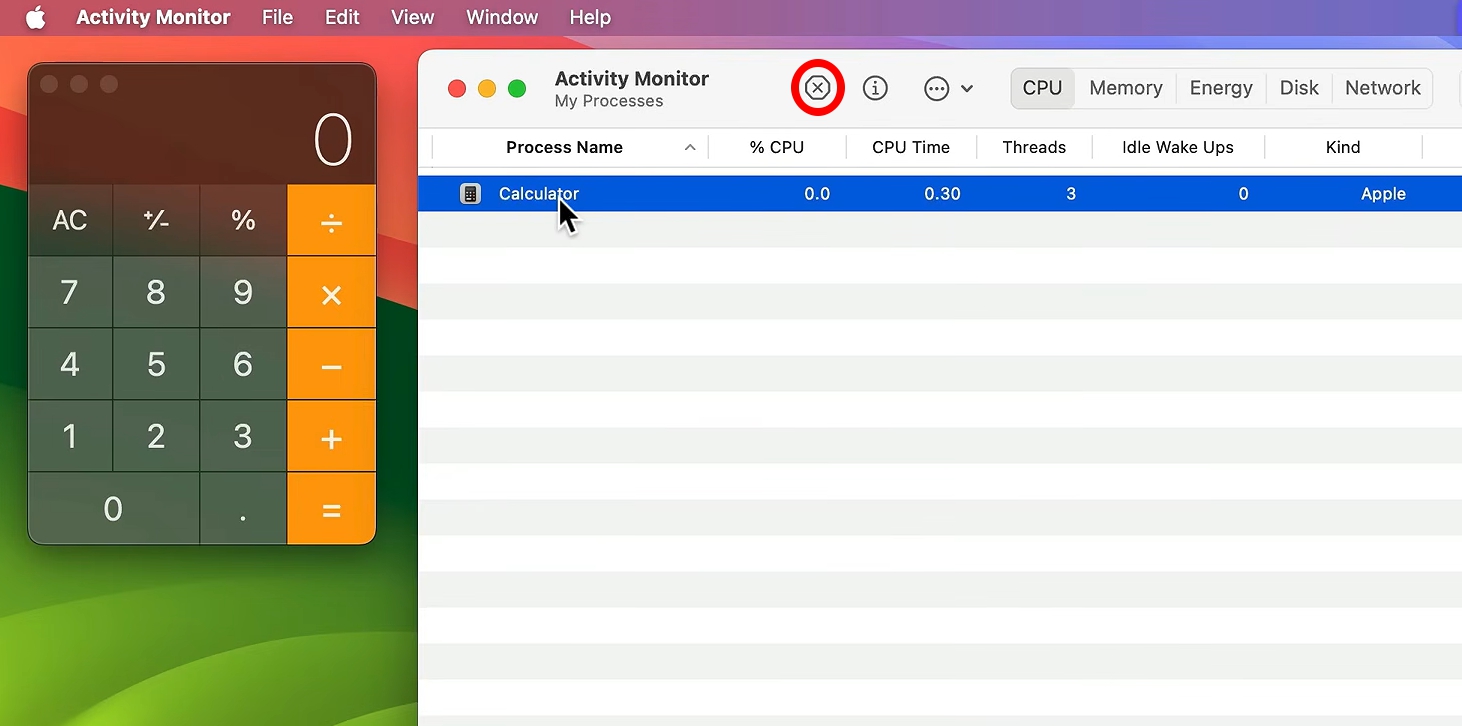

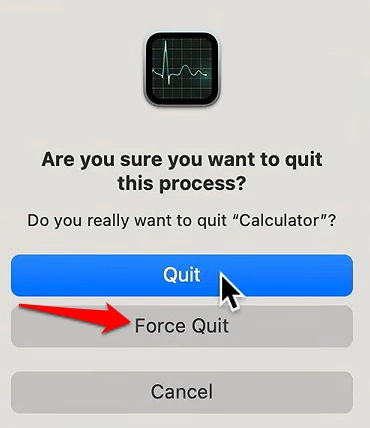
- Choose Quit or Force Quit from the menu.

- You may also go to View > click Quit Process.
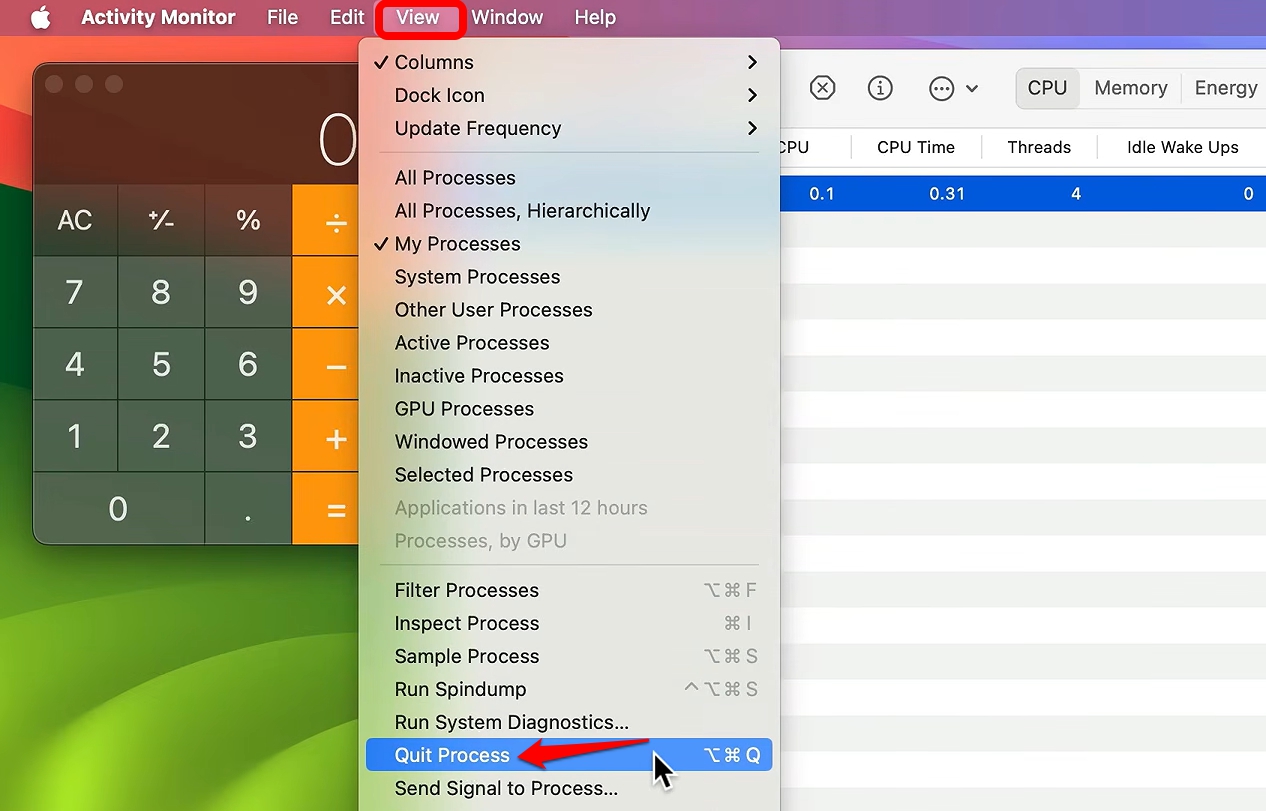

Quit lets the process exit when it is safe, while Force Quit ends it immediately and open files may lose data. This is also where background processes with no Dock icon show up.
Terminal for apps that will not close
The killall command followed by the app name closes it from Terminal, and names with spaces need quotes. For example,
- Launch Terminal on your Mac.


- To force-close Safari, typing killall Safari would do the job.


Try the plain command first. Adding the -9 flag sends a kill signal that gives the app no chance to refuse. Most people never really need this. Treat it as the go-to step only when closing an app from the Activity Monitor fails for some reason.
Close, Quit, and Force Quit are not the same
Closing a window usually leaves the app running, Quit asks the app to shut down properly, and Force Quit tells macOS to terminate it. I suggest using Force Quit only after a normal Quit fails.
If the menu bar still responds, try Quit from the app menu before anything else. It takes two seconds and keeps the app’s normal shutdown intact.
When the whole Mac is frozen
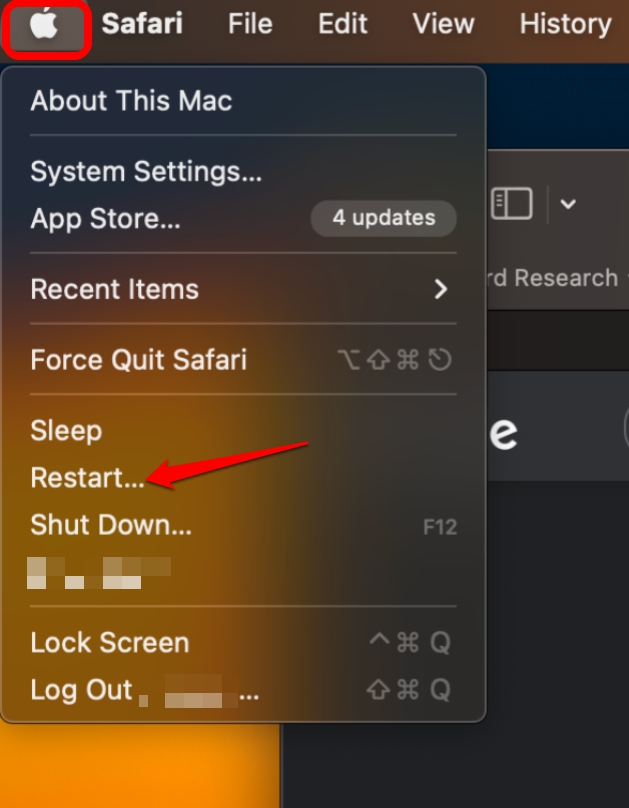
If the whole Mac stops responding, try Restart from the Apple menu first, then hold the power button for up to 10 seconds until it turns off.
If you have a Touch ID-supported Mac, use the Touch ID button instead. Press the button again to start up.
Frequently Asked Questions
What is the shortcut to force quit on Mac?
Option+Command+Esc opens the Force Quit Applications window. Select the frozen app and click Force Quit.
Does force quit delete my unsaved work?
Force Quit can lose unsaved work. Apple warns that Force Quit ends a process immediately and open files may lose data.
How do I force quit Finder?
Open the Force Quit window, select Finder, and click Relaunch. Finder is always running, so Relaunch replaces Force Quit.
What if my Mac will not restart?
Hold the power button for up to 10 seconds until the Mac turns off, or the Touch ID button on laptops that have one. Press it again to turn the Mac back on.

A habit that protects unsaved work
Quit normally whenever the app still responds. Force quit skips the normal shutdown routine, so it should be the exception. Once the order is clear, none of these steps feel like an emergency.
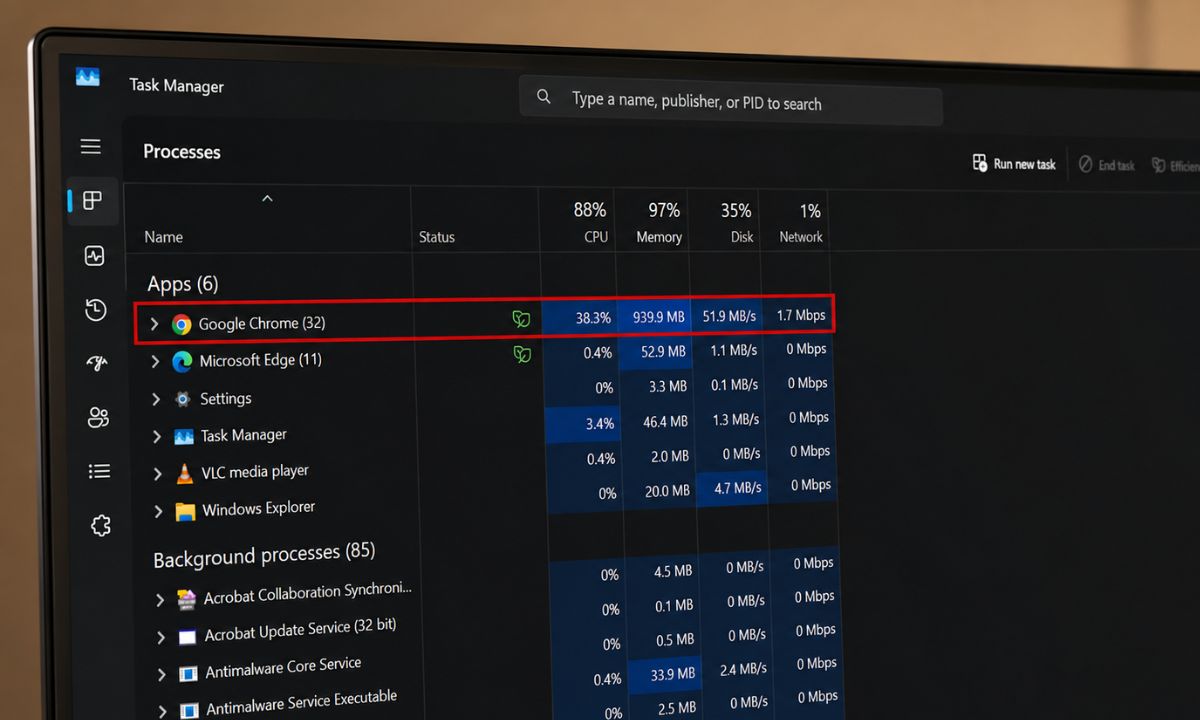
Give a stuck app a minute before you act, especially when a large file is open or a video file export is active. It is worth checking whether CPU or disk activity is still moving before you pull the plug on any app.