Windows 11 is the latest Windows OS that comes with a smooth interface, less power consumption, and feature-rich options & configuration. If you have bought a laptop with Windows 11 or upgraded your present PC to Windows 11 computer then the first job the owner does is connect the device to the internet.
If your Windows 11 WiFi is not working, showing limited access data or Windows WiFi is Not Connecting to the internet than, you can try the following methods to fix the Wi-Fi network issues on your Windows Computer. If you are facing issues with ethernet connection then you can follow this guide to Fix Ethernet Not Working on PC.
Fix 1. Use Flight Mode
Flight Mode is like a Mini Switch Off; it completely turns OFF the network radio on your Windows PC; this will give you a fresh instance on the radio. You can perform this operation by clicking on the action center and then turning Off and On the flight mode.
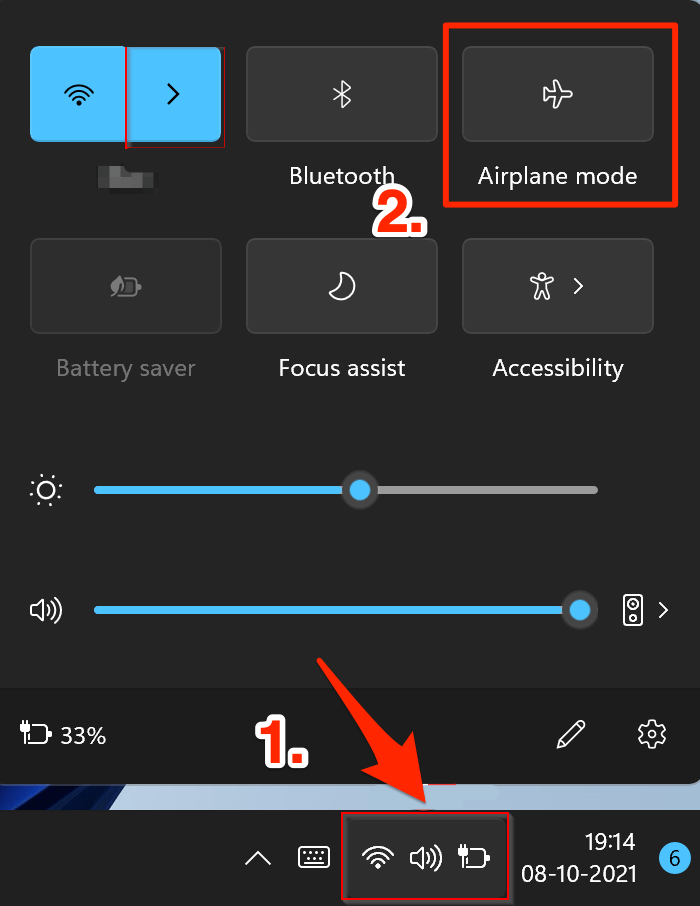
![[Fixed] Windows 11 WiFi Not Working or Showing Limited Access 2 Flight Mode Windows 11](https://www.digitbin.com/wp-content/uploads/Flight_Mode_Windows_11.png)
Fix 2. Forget and Reconnect to the Wi-Fi Network
A miscommunication is happening between the Wi-Fi router or Hotspot and the wireless module in the machine. If this is the issue, just erase the Windows configuration by forgetting the network and re-connect to the same network again. You have to enter the wireless network password, so make sure to note it down beforehand.
- Click on the Wi-Fi icon located in the Action Center and open WiFi
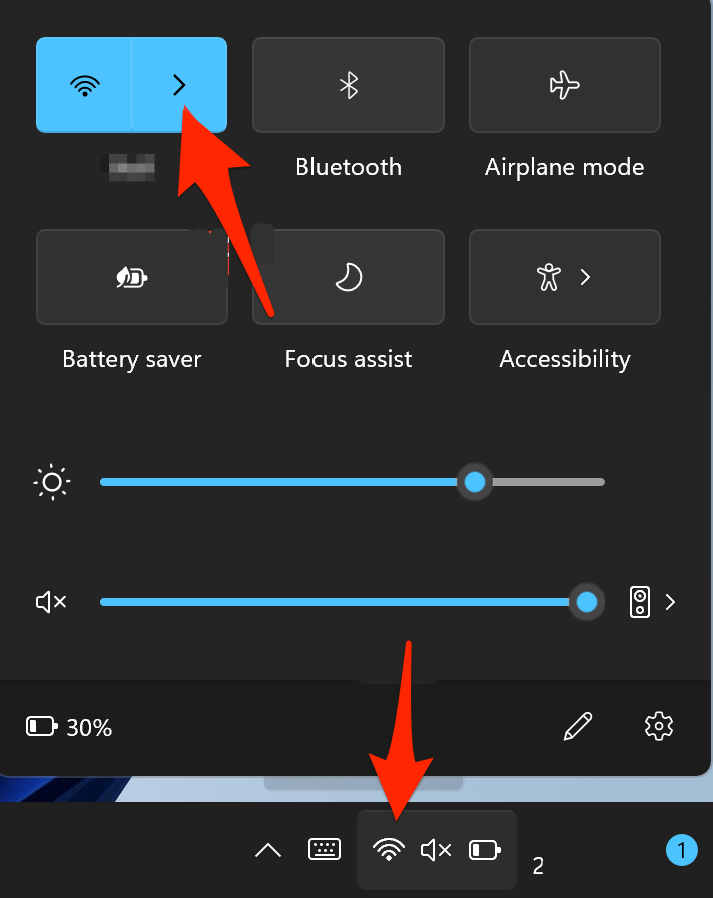
![[Fixed] Windows 11 WiFi Not Working or Showing Limited Access 3 WiFi-icon](data:image/svg+xml,%3Csvg%20xmlns=%22http://www.w3.org/2000/svg%22%20viewBox=%220%200%20400%20504%22%3E%3C/svg%3E)
- Now, right-click the Wi-Fi icon to view more options.
- Click on “Forget” to remove the wireless network.
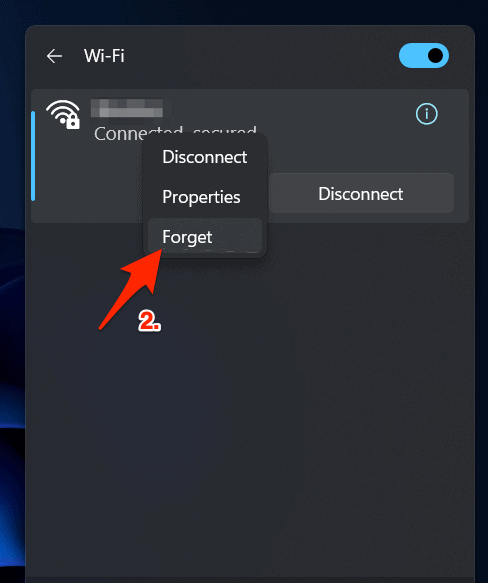
![[Fixed] Windows 11 WiFi Not Working or Showing Limited Access 4 Forget WiFi from Action Center](data:image/svg+xml,%3Csvg%20xmlns=%22http://www.w3.org/2000/svg%22%20viewBox=%220%200%20400%20478%22%3E%3C/svg%3E)
- Windows 11 will keep the network in the search list, so double-click on the network name and enter the password.
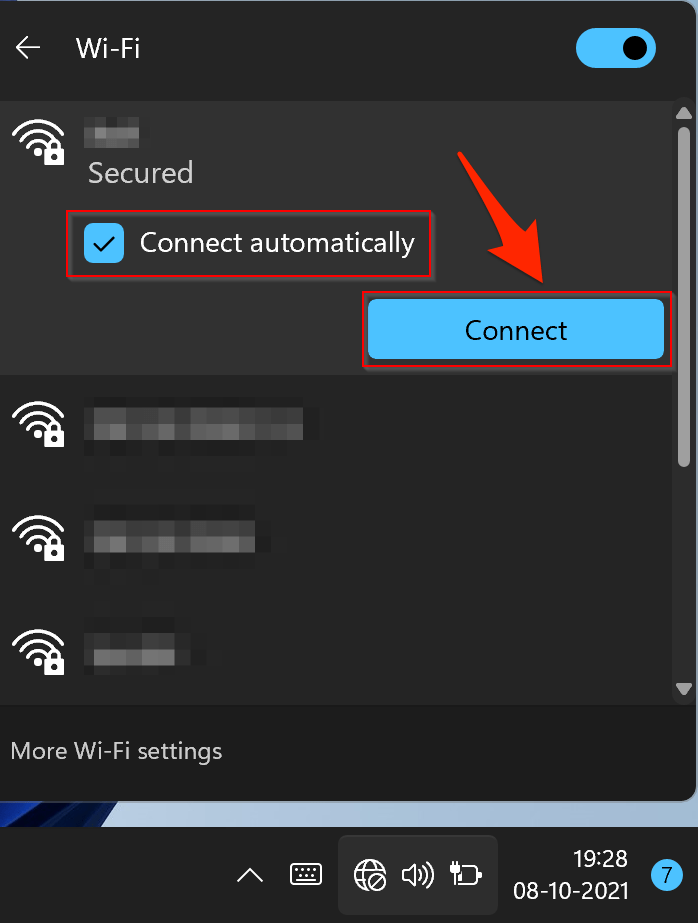
![[Fixed] Windows 11 WiFi Not Working or Showing Limited Access 5 WiFI-Connect-automatically](data:image/svg+xml,%3Csvg%20xmlns=%22http://www.w3.org/2000/svg%22%20viewBox=%220%200%20400%20529%22%3E%3C/svg%3E)
- Enter the password and then click on “Connect”.
- You have successfully connected to the Wi-Fi network.
Fix 3. Reset Network
If none of the aforementioned methods spelled out success, then you should consider resetting your PC’s network settings back to its factory default, i.e., exactly how it came shipped out of the box. Here are the required instructions for the same:
- Use the Windows+I shortcut to open the Settings page.
- Then select Network & Internet from the left menu bar and go to the Advanced network settings.
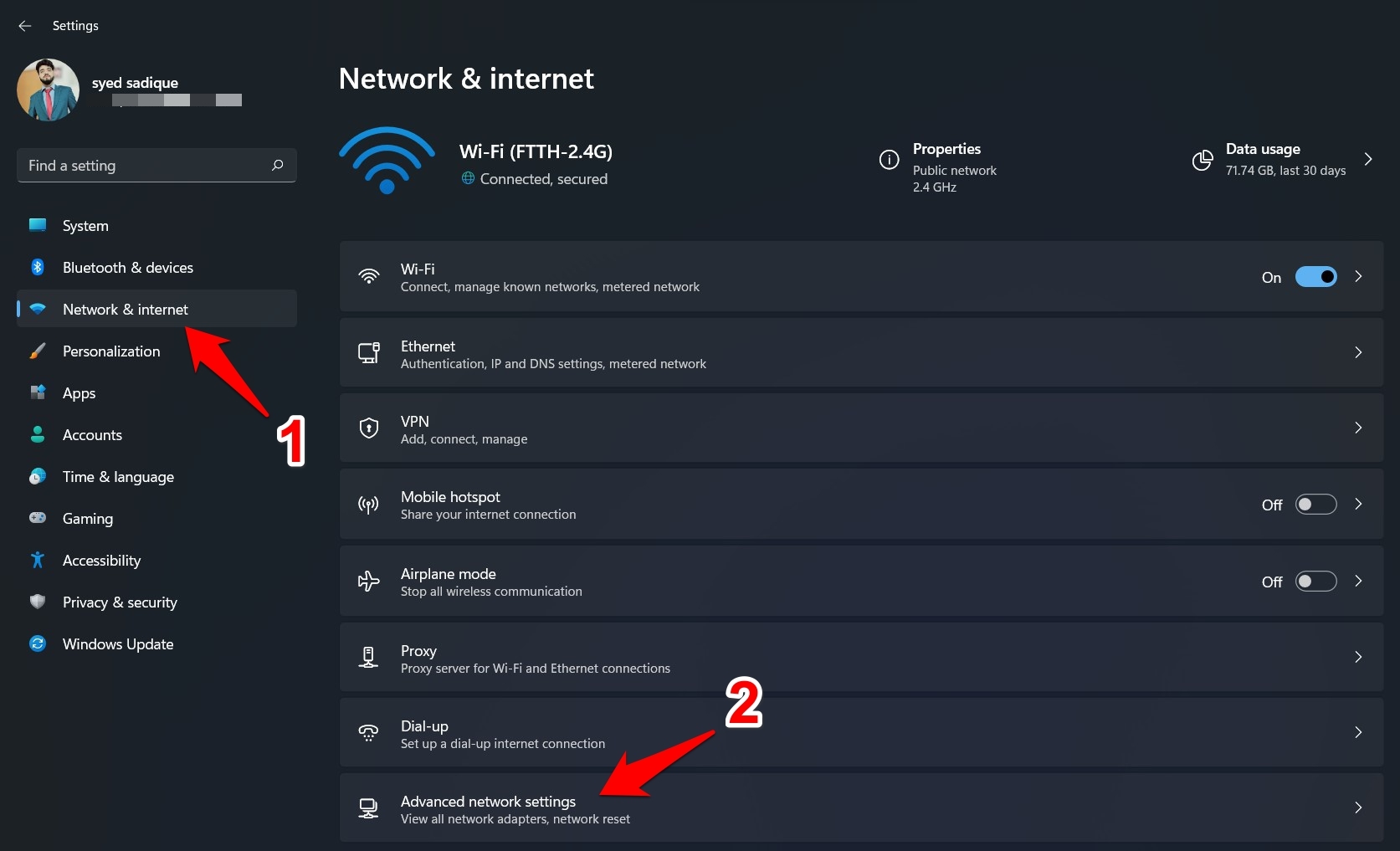
![[Fixed] Windows 11 WiFi Not Working or Showing Limited Access 6 advanced network settings windows 11](data:image/svg+xml,%3Csvg%20xmlns=%22http://www.w3.org/2000/svg%22%20viewBox=%220%200%201673%201017%22%3E%3C/svg%3E)
- Scroll to the More Settings section and click on Network Reset.
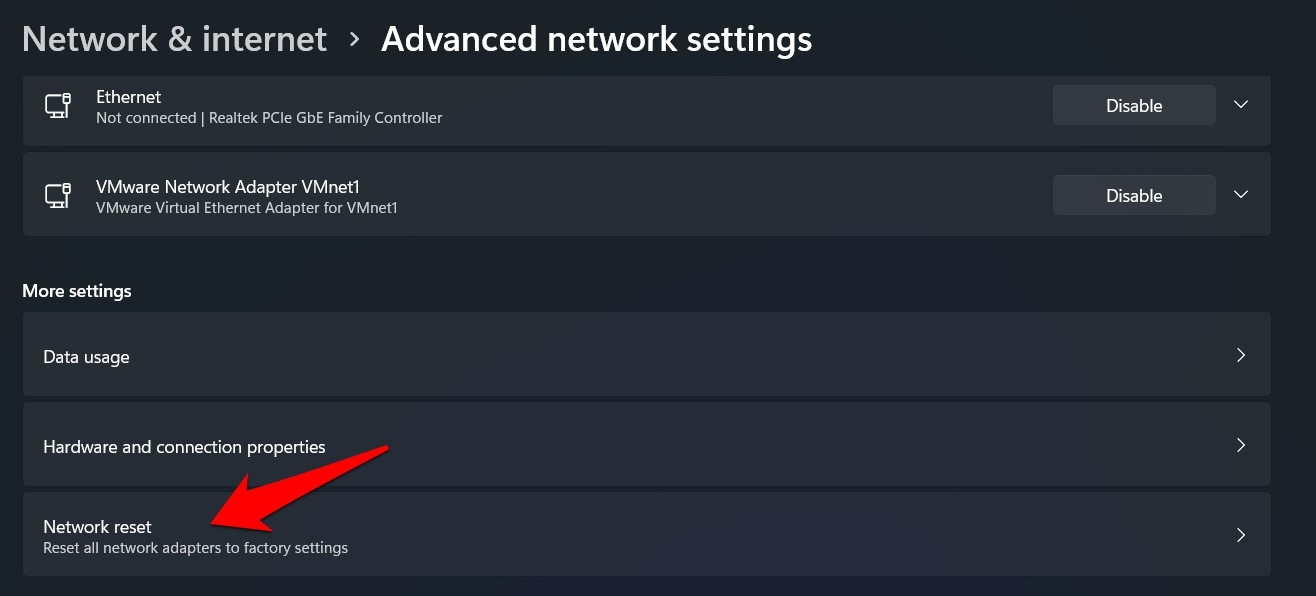
![[Fixed] Windows 11 WiFi Not Working or Showing Limited Access 7 network reset option windows 11](data:image/svg+xml,%3Csvg%20xmlns=%22http://www.w3.org/2000/svg%22%20viewBox=%220%200%201316%20596%22%3E%3C/svg%3E)
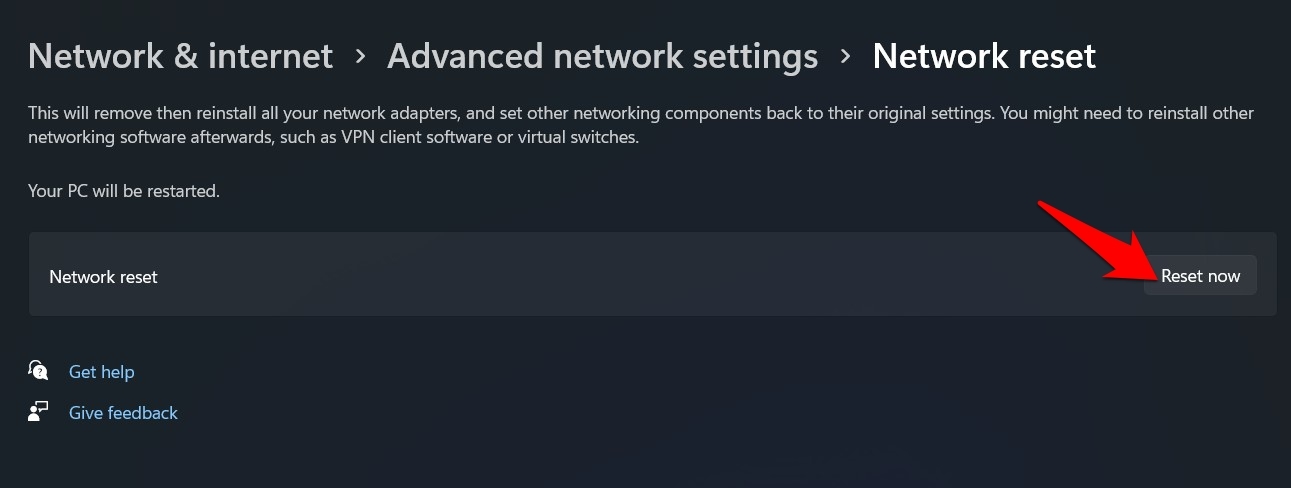
- Finally, click on Reset Now > Yes in the confirmation dialog box that appears.
![[Fixed] Windows 11 WiFi Not Working or Showing Limited Access 8 reset network windows 11](data:image/svg+xml,%3Csvg%20xmlns=%22http://www.w3.org/2000/svg%22%20viewBox=%220%200%201291%20488%22%3E%3C/svg%3E)
- Windows will revert the network settings to their default state, and this, in turn, should fix the Wi-Fi Network issue as well.
Fix 4. Run Windows Troubleshoot
If the WiFi network software managing the connections has some faulty glitches or lacks some settings, then a simple troubleshoot can come in very handy. This will scan the WiFi drivers and settings to remove any network congestions.
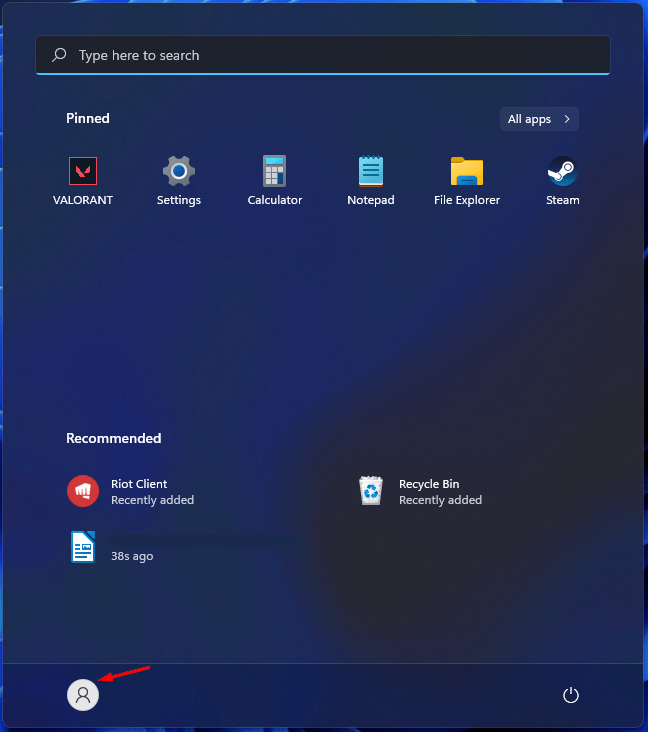
- Press the “Start” key and click on the “Settings” icon.
![[Fixed] Windows 11 WiFi Not Working or Showing Limited Access 9 Press the “Start” key and click on the “Settings” icon](data:image/svg+xml,%3Csvg%20xmlns=%22http://www.w3.org/2000/svg%22%20viewBox=%220%200%20648%20732%22%3E%3C/svg%3E)
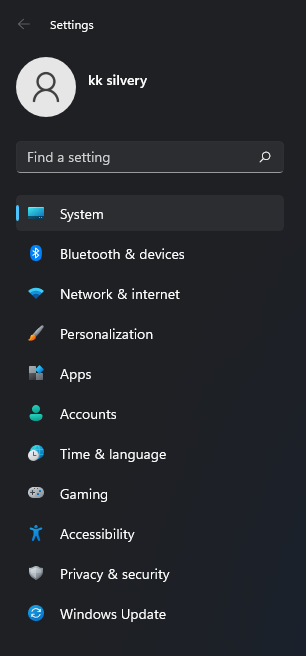
- Choose “System”.
![[Fixed] Windows 11 WiFi Not Working or Showing Limited Access 10 Choose “System”](data:image/svg+xml,%3Csvg%20xmlns=%22http://www.w3.org/2000/svg%22%20viewBox=%220%200%20306%20656%22%3E%3C/svg%3E)
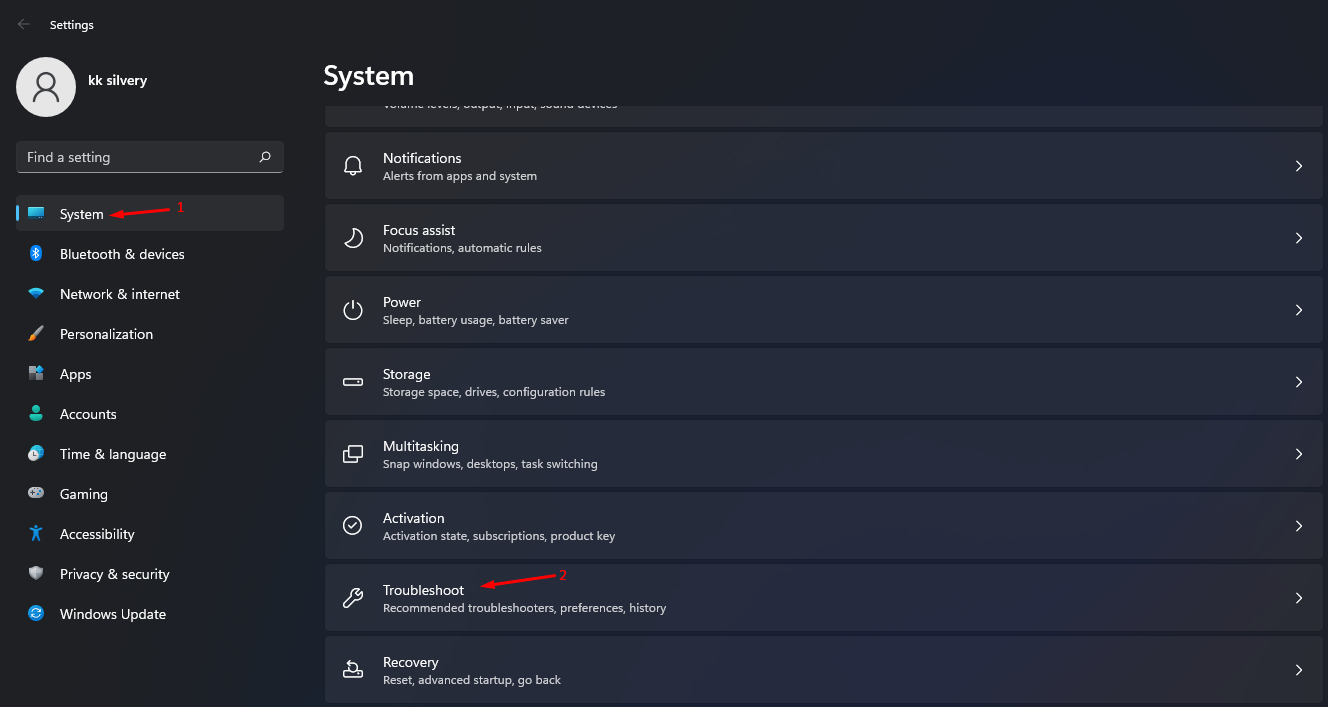
- Click on “Troubleshoot” to continue.
![[Fixed] Windows 11 WiFi Not Working or Showing Limited Access 11 Click on “Troubleshoot” to continue](data:image/svg+xml,%3Csvg%20xmlns=%22http://www.w3.org/2000/svg%22%20viewBox=%220%200%201328%20707%22%3E%3C/svg%3E)
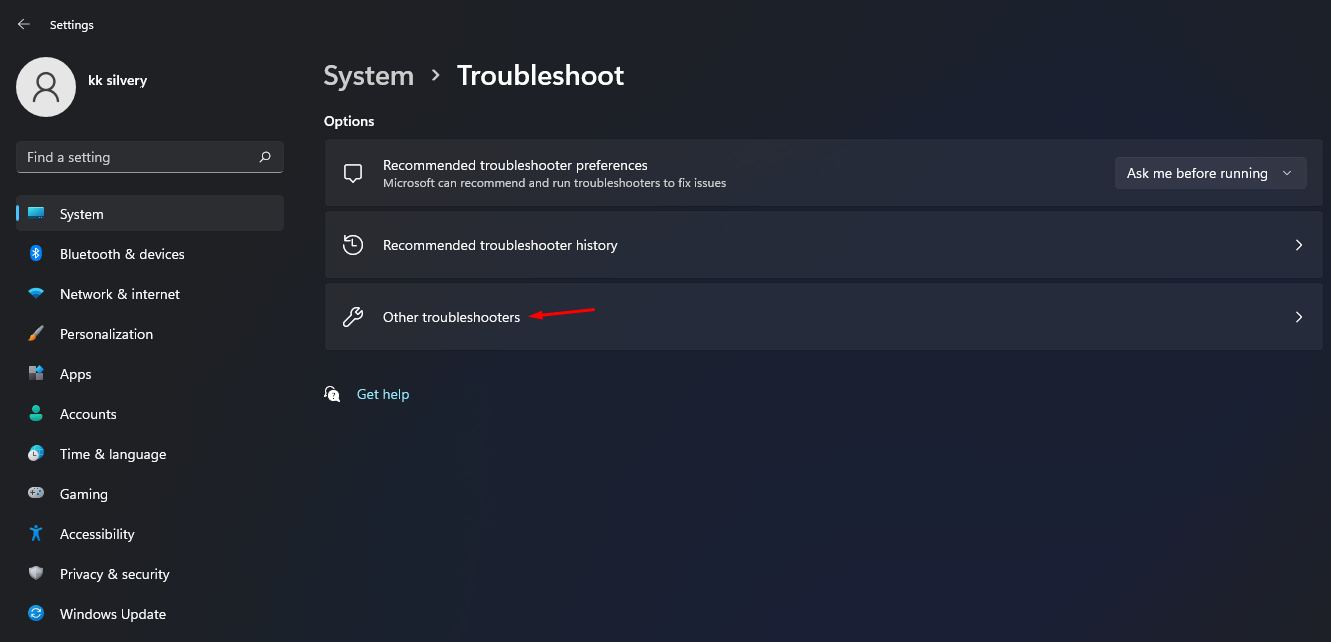
- Select “Other troubleshoots” to view more options.
![[Fixed] Windows 11 WiFi Not Working or Showing Limited Access 12 Select “Other troubleshoots” to view more options](data:image/svg+xml,%3Csvg%20xmlns=%22http://www.w3.org/2000/svg%22%20viewBox=%220%200%201331%20642%22%3E%3C/svg%3E)
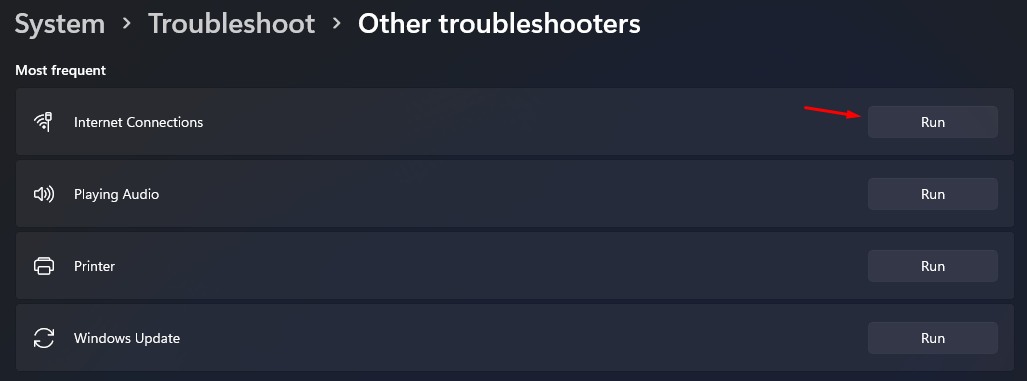
- Find “Internet Connection” and then click on “Run” to scan the network for problems.
![[Fixed] Windows 11 WiFi Not Working or Showing Limited Access 13 Find “Internet Connection” and then click on “Run” to scan the network for problems](data:image/svg+xml,%3Csvg%20xmlns=%22http://www.w3.org/2000/svg%22%20viewBox=%220%200%201027%20381%22%3E%3C/svg%3E)
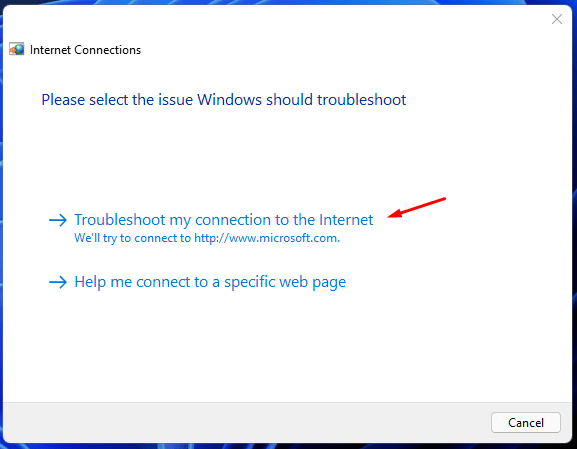
- A new window will pop up on the screen, and click “Troubleshoot my connection to the internet” to run the scan.
![[Fixed] Windows 11 WiFi Not Working or Showing Limited Access 14 Troubleshoot my connection to the internet](data:image/svg+xml,%3Csvg%20xmlns=%22http://www.w3.org/2000/svg%22%20viewBox=%220%200%20577%20449%22%3E%3C/svg%3E)
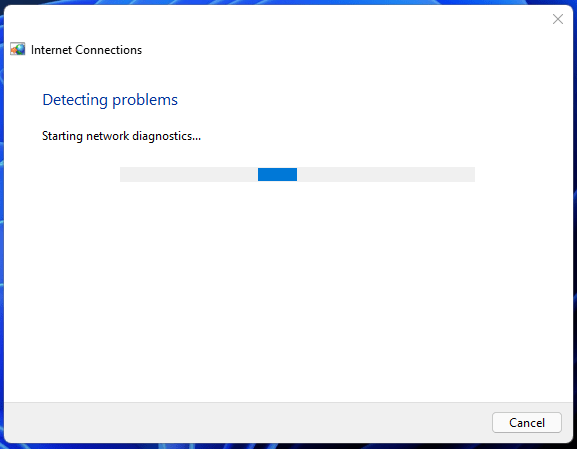
- Let the tool run a deep scan, which takes about one minute or less to finish the task. If the network scan shows any error, then fix the problem to solve the issue.
![[Fixed] Windows 11 WiFi Not Working or Showing Limited Access 15 Troubleshoot my connection to the internet](data:image/svg+xml,%3Csvg%20xmlns=%22http://www.w3.org/2000/svg%22%20viewBox=%220%200%20577%20449%22%3E%3C/svg%3E)
Fix 5. Update Network Drivers
With an upgrade to Windows 11, the drivers are also updated, but this may not happen in some instances. If you are using old or outdated network drivers, then are bound to be some network-related issues. Therefore you should consider updating these drivers to their newest build right away.
- Press the “Start” key.
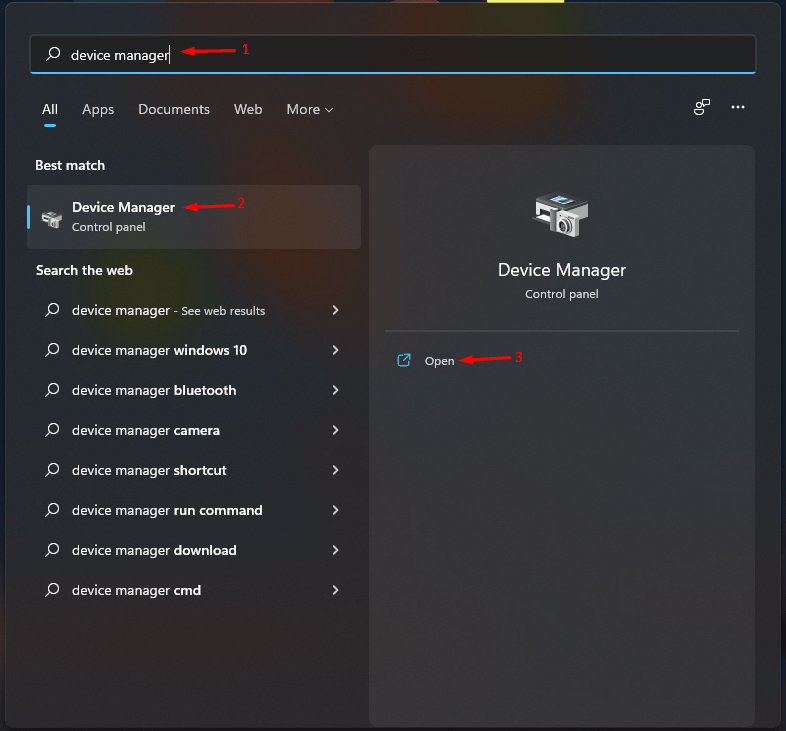
- Search “Device Manager” and open it.
![[Fixed] Windows 11 WiFi Not Working or Showing Limited Access 16 Search “Device Manager” and open it](data:image/svg+xml,%3Csvg%20xmlns=%22http://www.w3.org/2000/svg%22%20viewBox=%220%200%20786%20731%22%3E%3C/svg%3E)
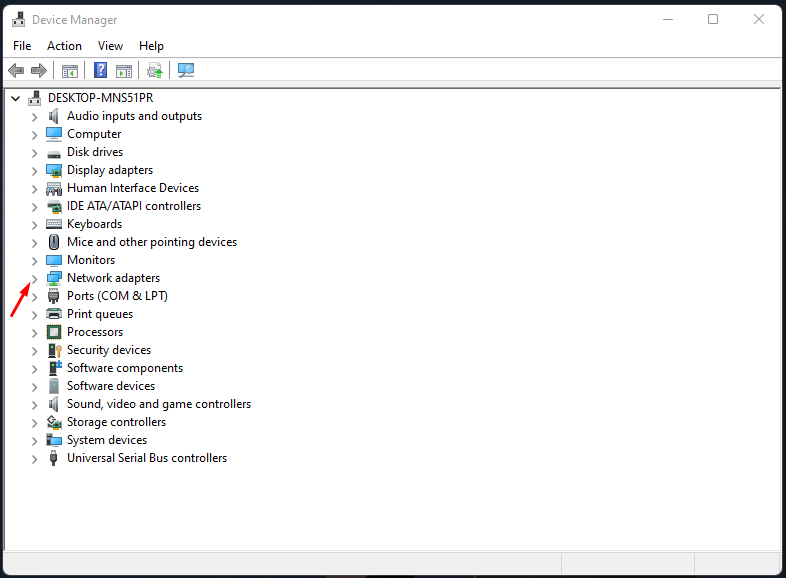
- Click on the drop-down button beside “Network Adapters”.
![[Fixed] Windows 11 WiFi Not Working or Showing Limited Access 17 Click on the drop-down button beside “Network Adapters”](data:image/svg+xml,%3Csvg%20xmlns=%22http://www.w3.org/2000/svg%22%20viewBox=%220%200%20786%20578%22%3E%3C/svg%3E)
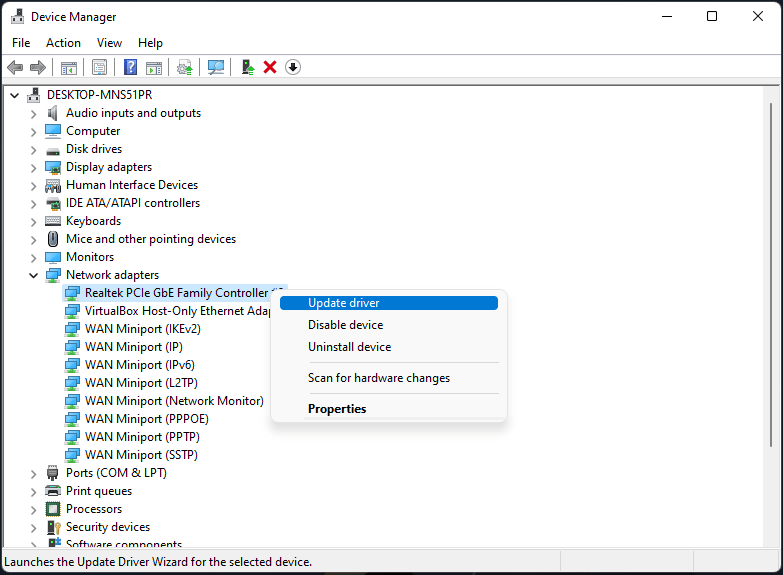
- Click to select the network adapter and right-mouse click to view more options, and then choose “Update driver” to continue.
![[Fixed] Windows 11 WiFi Not Working or Showing Limited Access 18 choose “Update driver” to continue](data:image/svg+xml,%3Csvg%20xmlns=%22http://www.w3.org/2000/svg%22%20viewBox=%220%200%20783%20575%22%3E%3C/svg%3E)
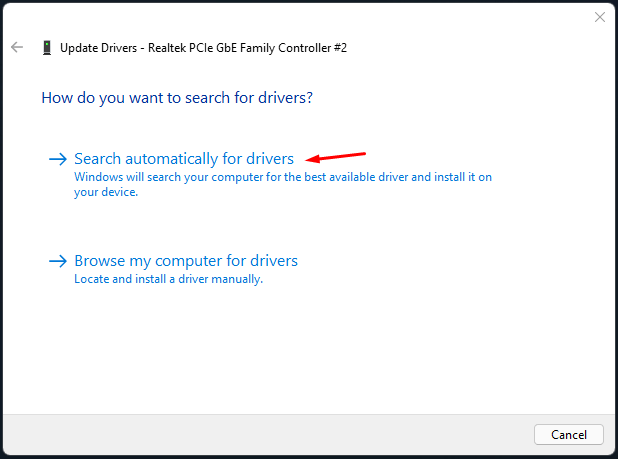
- Click on “Search automatically for drivers” to continue.
![[Fixed] Windows 11 WiFi Not Working or Showing Limited Access 19 Search automatically for drivers](data:image/svg+xml,%3Csvg%20xmlns=%22http://www.w3.org/2000/svg%22%20viewBox=%220%200%20618%20459%22%3E%3C/svg%3E)
Once the installation is complete, restart your PC. When it boots up, check whether the WiFi connection error on your Windows 11 PC has been fixed or not.
Fix 6. Re-Enable Network Driver
If installing the newer driver build didn’t do any good, then you should consider disabling and then re-enabling these drivers. This will give it a fresh instance to work upon, which in turn might fix the underlying issue.
- Press the “Start” key.
- Search “Device Manager” and open it.
![[Fixed] Windows 11 WiFi Not Working or Showing Limited Access 16 Search “Device Manager” and open it](data:image/svg+xml,%3Csvg%20xmlns=%22http://www.w3.org/2000/svg%22%20viewBox=%220%200%20786%20731%22%3E%3C/svg%3E)
- Click on the drop-down button beside “Network Adapters”.
![[Fixed] Windows 11 WiFi Not Working or Showing Limited Access 17 Click on the drop-down button beside “Network Adapters”](data:image/svg+xml,%3Csvg%20xmlns=%22http://www.w3.org/2000/svg%22%20viewBox=%220%200%20786%20578%22%3E%3C/svg%3E)
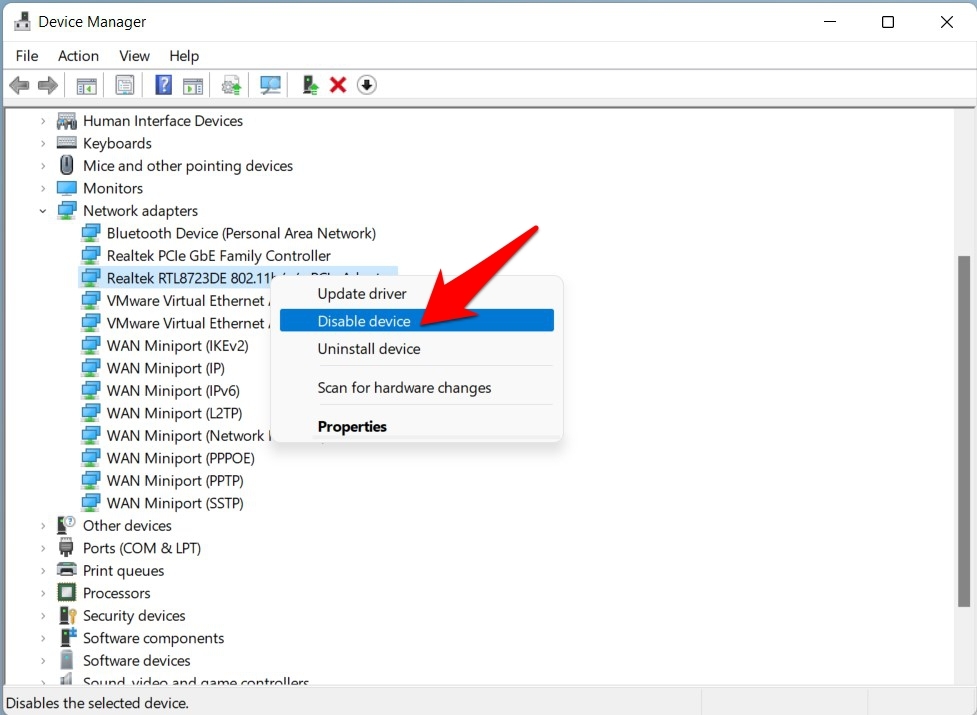
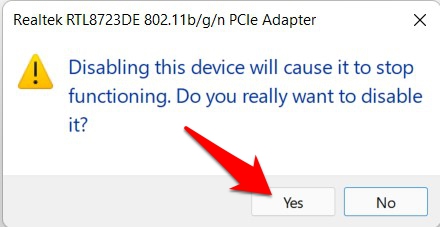
- Right-click on your adapter and select Disable Device from the menu.
![[Fixed] Windows 11 WiFi Not Working or Showing Limited Access 22 disable network driver windows 11](data:image/svg+xml,%3Csvg%20xmlns=%22http://www.w3.org/2000/svg%22%20viewBox=%220%200%20702%20514%22%3E%3C/svg%3E)
- After that, click Yes in the confirmation dialog box that appears.
![[Fixed] Windows 11 WiFi Not Working or Showing Limited Access 23 disable network driver confirmation windows 11](data:image/svg+xml,%3Csvg%20xmlns=%22http://www.w3.org/2000/svg%22%20viewBox=%220%200%20440%20227%22%3E%3C/svg%3E)
- Now let the drivers remain in this state for a couple of minutes. Then right-click on it and select Enable Device.
Once they are back up, verify if it fixes the WiFi Doesn’t Have a Valid IP Configuration error on Windows 11.
Fix 7. Re-Install Network Drivers
You can also consider uninstalling and then reinstalling the network drivers. Here’s how it could be done:
- Press the Windows+X shortcut keys and select Device Manager.
- Then expand the Network Adapter section.
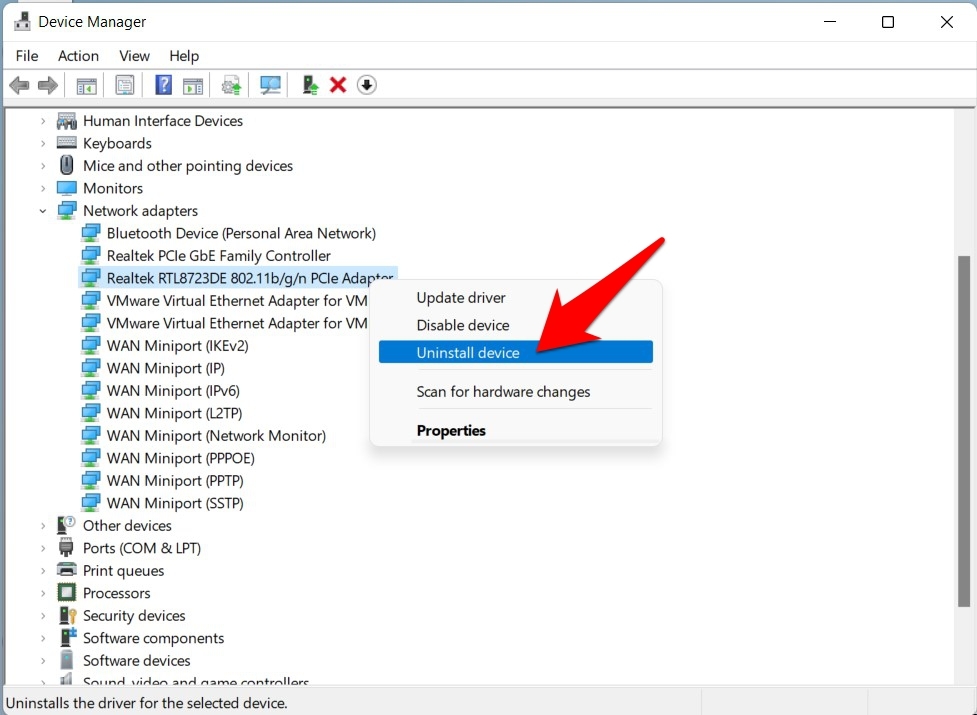
- Right-click on your network drivers and select Uninstall Device.
![[Fixed] Windows 11 WiFi Not Working or Showing Limited Access 24 uninstall network adapters windows 11](data:image/svg+xml,%3Csvg%20xmlns=%22http://www.w3.org/2000/svg%22%20viewBox=%220%200%20700%20512%22%3E%3C/svg%3E)
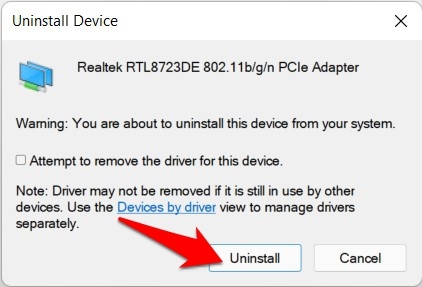
- Then hit Uninstall in the confirmation dialog box.
![[Fixed] Windows 11 WiFi Not Working or Showing Limited Access 25 uninstall network driver confirmation windows 11](data:image/svg+xml,%3Csvg%20xmlns=%22http://www.w3.org/2000/svg%22%20viewBox=%220%200%20422%20287%22%3E%3C/svg%3E)
- Once the drivers have been uninstalled, restart your PC.
- When it boots up, the network drivers should automatically be installed.
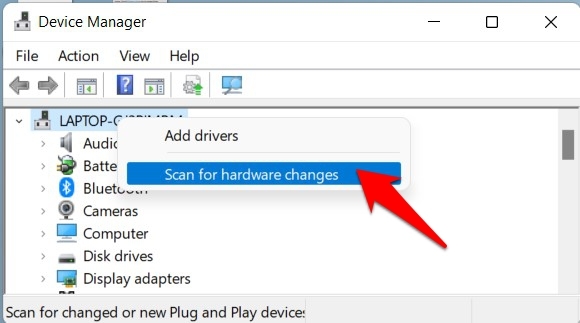
- However, if that doesn’t happen, then open Device Manager and right-click on your PC name situated at the top.
![[Fixed] Windows 11 WiFi Not Working or Showing Limited Access 26 scan for hardware changes windows 11](data:image/svg+xml,%3Csvg%20xmlns=%22http://www.w3.org/2000/svg%22%20viewBox=%220%200%20450%20251%22%3E%3C/svg%3E)
- Then select Scan for hardware changes. Windows will now search for the missing drivers and subsequently install them as well.
Fix 8. Release/Renew IP Address
One of the most common reasons for this error is the incorrect Internet Protocol configuration. In this regard, your first course of action should be to let go of the current configuration and renew its new instance. All this could be carried suitable from the Command Window itself, here’s how:
How to Set Command Prompt as Default in Windows 11 Terminal?
- Head over to the Start menu and search CMD.
- Then launch Command Prompt from the results.
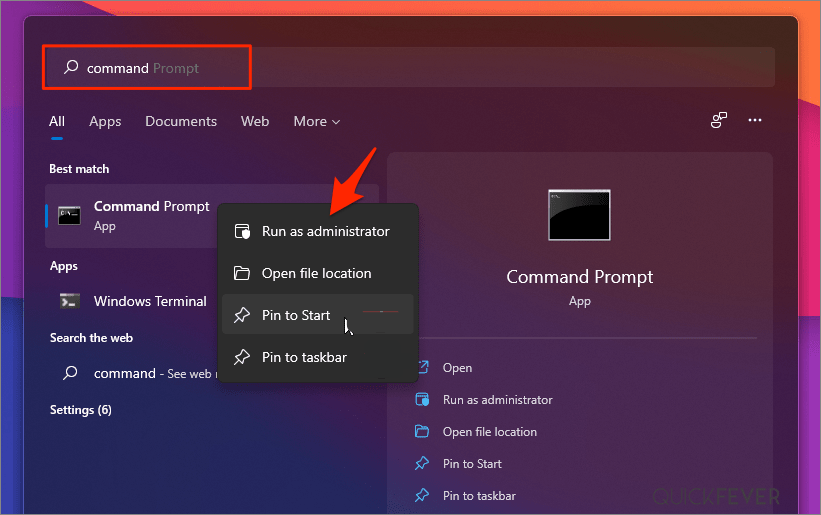
![[Fixed] Windows 11 WiFi Not Working or Showing Limited Access 27 Windows-11-cmd](data:image/svg+xml,%3Csvg%20xmlns=%22http://www.w3.org/2000/svg%22%20viewBox=%220%200%20821%20515%22%3E%3C/svg%3E)
- Now type in the below command to release the current IP configuration
ipconfig /release
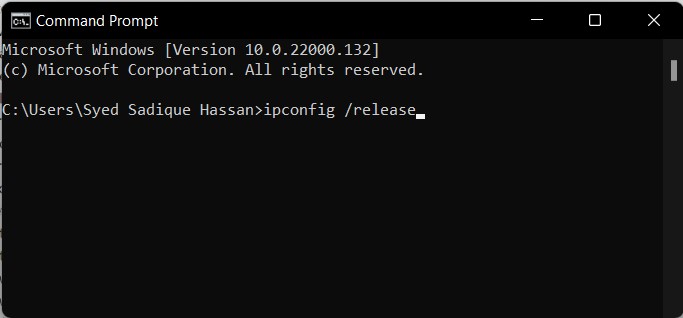
![[Fixed] Windows 11 WiFi Not Working or Showing Limited Access 28 ipconfig release command windows 11](data:image/svg+xml,%3Csvg%20xmlns=%22http://www.w3.org/2000/svg%22%20viewBox=%220%200%20683%20318%22%3E%3C/svg%3E)
- Once that is done, execute the below command to bring up the new config:
ipconfig /renew
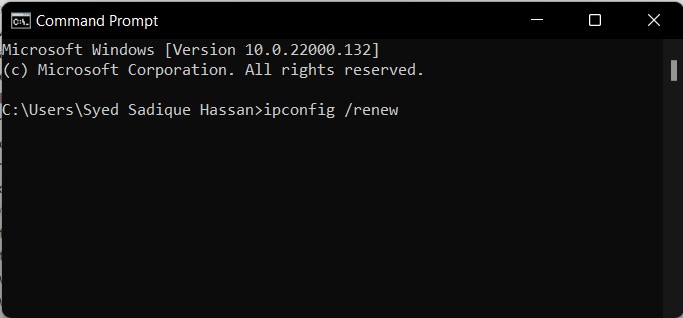
![[Fixed] Windows 11 WiFi Not Working or Showing Limited Access 29 renew ip configuration windows 11](data:image/svg+xml,%3Csvg%20xmlns=%22http://www.w3.org/2000/svg%22%20viewBox=%220%200%20683%20318%22%3E%3C/svg%3E)
Now try accessing the web on your Windows 11 PC and check if the WiFi Doesn’t Have a Valid IP Configuration error has been fixed or not.
Reset TCP/IP
Any issues with this TCP (or any of its four layers) would fail in the data transfer process. The only way out in such cases is to reset it, as well as its Winsock catalog. Here’s how it could be done:
- First off, head over to the Start, search CMD and launch Command prompt
- Then type in the below command to reset the Winsock. In case if it has any incorrect or corrupt entries, it would all be removed as well:
netsh winsock reset catalog
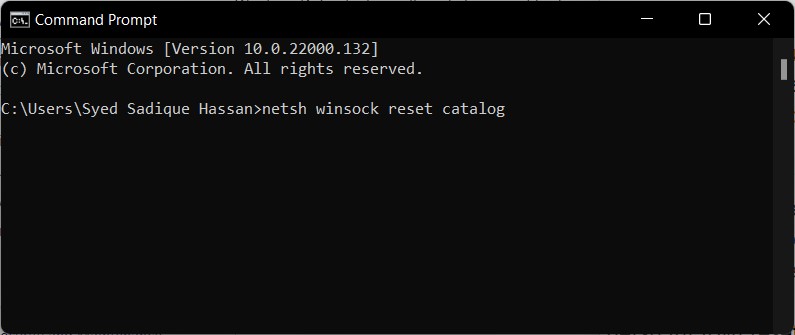
![[Fixed] Windows 11 WiFi Not Working or Showing Limited Access 30 reset network catalog in windows 11](data:image/svg+xml,%3Csvg%20xmlns=%22http://www.w3.org/2000/svg%22%20viewBox=%220%200%20795%20335%22%3E%3C/svg%3E)
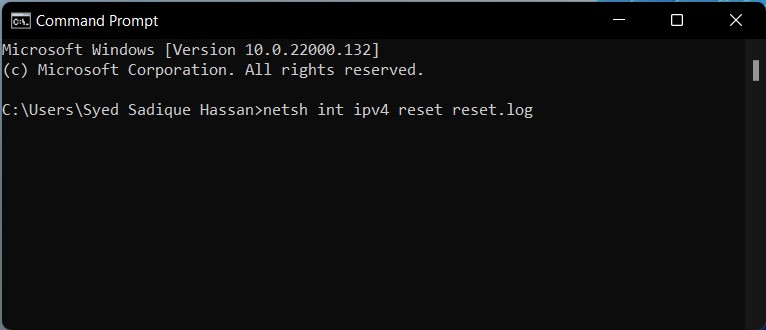
- Once that is done, execute the below command to reset the 32-bit IP Address
netsh int ipv4 reset reset.log
![[Fixed] Windows 11 WiFi Not Working or Showing Limited Access 31 reset ipv4 windows 11](data:image/svg+xml,%3Csvg%20xmlns=%22http://www.w3.org/2000/svg%22%20viewBox=%220%200%20766%20330%22%3E%3C/svg%3E)
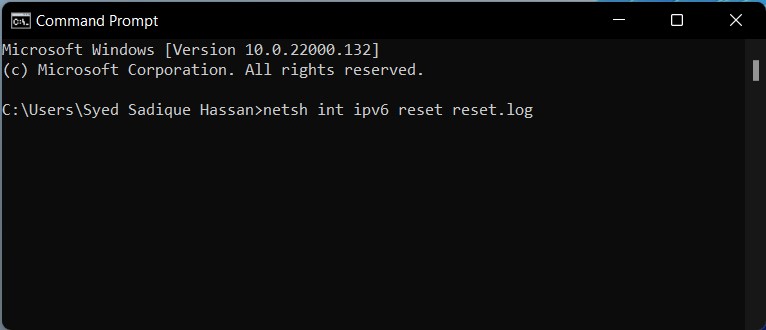
- Likewise, reset the 128-bit IP Address as well with the help of the following command:
netsh int ipv6 reset reset.log
![[Fixed] Windows 11 WiFi Not Working or Showing Limited Access 32 reset ipv6 windows 11](data:image/svg+xml,%3Csvg%20xmlns=%22http://www.w3.org/2000/svg%22%20viewBox=%220%200%20766%20330%22%3E%3C/svg%3E)
That’s it; with this guide, you can fix WiFi connectivity or Limited internet access issues on your Windows 11 PC using this top solution listed above.

![[Fixed] Windows 11 WiFi Not Working or Showing Limited Access 1 Windows 11 WiFi Internet Not Working](https://www.digitbin.com/wp-content/uploads/Windows-11-WiFi-Internet-Not-Working.png)
![[Fixed] Windows 11 WiFi Not Working or Showing Limited Access 4 Forget WiFi from Action Center](https://www.digitbin.com/wp-content/uploads/Forget-From-Action-Center-2.png)
![[Fixed] Windows 11 WiFi Not Working or Showing Limited Access 5 WiFI-Connect-automatically](https://www.digitbin.com/wp-content/uploads/WiFI-Connect-automatically.png)
![[Fixed] Windows 11 WiFi Not Working or Showing Limited Access 6 advanced network settings windows 11](https://www.digitbin.com/wp-content/uploads/advanced-network-settings-windows-11.jpg)
![[Fixed] Windows 11 WiFi Not Working or Showing Limited Access 7 network reset option windows 11](https://www.digitbin.com/wp-content/uploads/network-reset-option-windows-11.jpg)
![[Fixed] Windows 11 WiFi Not Working or Showing Limited Access 8 reset network windows 11](https://www.digitbin.com/wp-content/uploads/reset-network-windows-11.jpg)
![[Fixed] Windows 11 WiFi Not Working or Showing Limited Access 10 Choose “System”](https://www.digitbin.com/wp-content/uploads/Choose-System.png)
![[Fixed] Windows 11 WiFi Not Working or Showing Limited Access 11 Click on “Troubleshoot” to continue](https://www.digitbin.com/wp-content/uploads/Click-on-Troubleshoot-to-continue.png)
![[Fixed] Windows 11 WiFi Not Working or Showing Limited Access 12 Select “Other troubleshoots” to view more options](https://www.digitbin.com/wp-content/uploads/Select-Other-troubleshoots-to-view-more-options.png)
![[Fixed] Windows 11 WiFi Not Working or Showing Limited Access 13 Find “Internet Connection” and then click on “Run” to scan the network for problems](https://www.digitbin.com/wp-content/uploads/Find-Internet-Connection-and-then-click-on-Run-to-scan-the-network-for-problems.png)
![[Fixed] Windows 11 WiFi Not Working or Showing Limited Access 14 Troubleshoot my connection to the internet](https://www.digitbin.com/wp-content/uploads/Troubleshoot-Internet-Connection-6.png)
![[Fixed] Windows 11 WiFi Not Working or Showing Limited Access 15 Troubleshoot my connection to the internet](https://www.digitbin.com/wp-content/uploads/Troubleshoot-Internet-Connection-7.png)
![[Fixed] Windows 11 WiFi Not Working or Showing Limited Access 16 Search “Device Manager” and open it](https://www.digitbin.com/wp-content/uploads/Search-Device-Manager-and-open-it.png)
![[Fixed] Windows 11 WiFi Not Working or Showing Limited Access 17 Click on the drop-down button beside “Network Adapters”](https://www.digitbin.com/wp-content/uploads/Click-on-the-drop-down-button-beside-Network-Adapters.png)
![[Fixed] Windows 11 WiFi Not Working or Showing Limited Access 18 choose “Update driver” to continue](https://www.digitbin.com/wp-content/uploads/choose-Update-driver-to-continue.png)
![[Fixed] Windows 11 WiFi Not Working or Showing Limited Access 19 Search automatically for drivers](https://www.digitbin.com/wp-content/uploads/Search-automatically-for-drivers.png)
![[Fixed] Windows 11 WiFi Not Working or Showing Limited Access 22 disable network driver windows 11](https://www.digitbin.com/wp-content/uploads/disable-network-driver-windows-11.jpg)
![[Fixed] Windows 11 WiFi Not Working or Showing Limited Access 23 disable network driver confirmation windows 11](https://www.digitbin.com/wp-content/uploads/disable-network-driver-confirmation-windows-11.jpg)
![[Fixed] Windows 11 WiFi Not Working or Showing Limited Access 24 uninstall network adapters windows 11](https://www.digitbin.com/wp-content/uploads/uninstall-network-adapters-windows-11.jpg)
![[Fixed] Windows 11 WiFi Not Working or Showing Limited Access 25 uninstall network driver confirmation windows 11](https://www.digitbin.com/wp-content/uploads/uninstall-network-driver-confirmation-windows-11.jpg)
![[Fixed] Windows 11 WiFi Not Working or Showing Limited Access 26 scan for hardware changes windows 11](https://www.digitbin.com/wp-content/uploads/scan-for-hardware-changes-windows-11.jpg)
![[Fixed] Windows 11 WiFi Not Working or Showing Limited Access 27 Windows-11-cmd](https://www.digitbin.com/wp-content/uploads/Windows-11-cmd.png)
![[Fixed] Windows 11 WiFi Not Working or Showing Limited Access 28 ipconfig release command windows 11](https://www.digitbin.com/wp-content/uploads/ipconfig-release-command-windows-11.jpg)
![[Fixed] Windows 11 WiFi Not Working or Showing Limited Access 29 renew ip configuration windows 11](https://www.digitbin.com/wp-content/uploads/renew-ip-configuration-windows-11.jpg)
![[Fixed] Windows 11 WiFi Not Working or Showing Limited Access 30 reset network catalog in windows 11](https://www.digitbin.com/wp-content/uploads/reset-network-catalog-in-windows-11.jpg)
![[Fixed] Windows 11 WiFi Not Working or Showing Limited Access 31 reset ipv4 windows 11](https://www.digitbin.com/wp-content/uploads/reset-ipv4-windows-11.jpg)
![[Fixed] Windows 11 WiFi Not Working or Showing Limited Access 32 reset ipv6 windows 11](https://www.digitbin.com/wp-content/uploads/reset-ipv6-windows-11.jpg)


![[7+ Methods] Fix 'Can't Connect to this Network' in Windows 11 Windows 11 can't connect to this network](https://www.digitbin.com/wp-content/uploads/Windows-11-cant-connect-to-this-network-400x220.png)