You open Chrome, load a dozen tabs, and watch your laptop fan spin up like it is about to take off. Task Manager shows Chrome consuming 8, 10, sometimes 14GB of RAM, and nothing else is even open. Why does a browser need that much memory just to show you some web pages?
The short answer is that Chrome does a lot more than show web pages. The longer answer involves how Chrome is architected, what each tab and extension actually costs, and why some of the fixes people recommend online do not help as much as they think.
This is a breakdown of why Chrome uses so much RAM, how to measure it properly using Chrome’s own tools, and what actually reduces memory usage versus what just feels like it should.
Chrome does not run as a single program. It runs as many programs simultaneously, one for each tab, one for each extension, and several for its own background processes.
This design is called a multi-process architecture. Google introduced it when Chrome launched in 2008, and it was a step forward at the time. Before it, if one tab crashed in a browser, the whole browser went down with it. Chrome isolated each tab so a crash in one would not affect anything else.
The utilization of this feature comes at the cost of your PC memory. Each separate process carries its own overhead: its own copy of certain shared resources, individual memory allocation, and footprint. One tab might cost 150MB. Another tab running a complex web app might cost 600MB or more. Open fifteen tabs, and the numbers compound fast.
Extensions make this worse. Each active extension runs as its own process. If you have eight extensions installed and enabled, Chrome is running eight additional background processes before you open even a single tab.
Complicated as it may seem, this is not a bug. It is the intended design. This is why Chrome’s memory usage looks alarming compared to basic software.
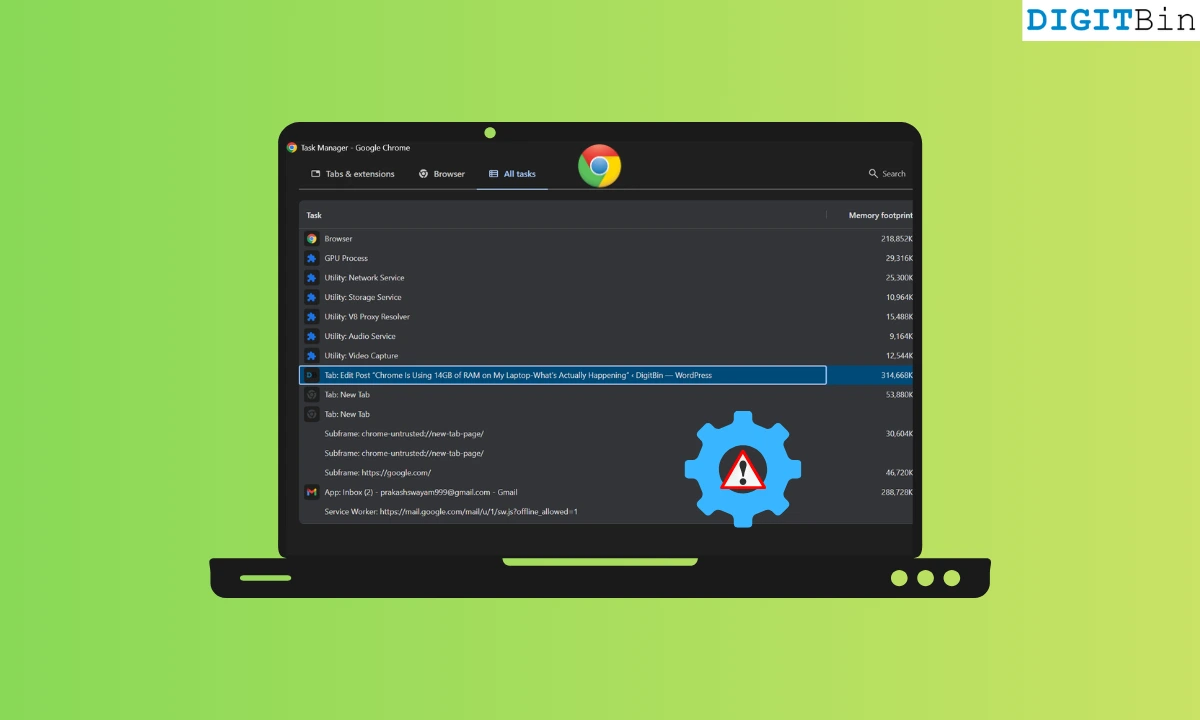
Chrome has a built-in task manager that most people never open. Press Shift + Esc on Windows to open it directly. On Mac, go to the three-dot menu, select More Tools, then Task Manager.
What you see is a list of every process Chrome is running: each tab, each extension, each internal service. The Memory column shows how much each one is consuming right now.
In a typical session with 20 tabs open, here is roughly what to expect. A basic news article tab might show 80 to 150MB. A Gmail tab often sits between 200 and 400MB. A Google Docs tab with a long document can hit 300 to 500MB.
YouTube with a video paused: 300MB or higher. A complex SaaS tool like Notion or Figma running in a tab can use 500MB to over 1GB on its own.
Extensions add their own load on top. A heavy ad blocker with a large filter list might use 80 to 150MB. A grammar checker running on every page can use 100MB or more. Multiply that across six or eight extensions, and you have added 500 to 800MB before counting any tabs.
The GPU Process entry, which appears in Chrome’s task manager as a separate line, typically uses 200 to 500MB on its own. The Browser process adds another 100 to 300MB. These run regardless of how many tabs are open.
You can also check the full guide to reducing Chrome RAM usage for a more structured approach to managing memory across sessions.
In most cases, the RAM usage is not evenly distributed. One or two tabs are usually responsible for a disproportionate share. JavaScript-heavy pages are the biggest contributors. Sites built on React, Angular, or similar frameworks often keep large amounts of state in memory as long as the tab is open.
A dashboard that refreshes every few seconds, a news site with auto-loading content, or a chat app with live updates can each consume several hundred megabytes just from the JavaScript runtime.
Video is the other major factor. A YouTube tab with a video paused still holds decoded frame data in memory. Multiple YouTube or streaming tabs open simultaneously can easily account for 1 to 2GB on their own.
Forgotten tabs are the hidden cost. A tab opened three hours ago and never returned to is still running, still consuming memory, still executing any background scripts the page loaded.
Chrome’s Memory Saver feature, found at chrome://settings/performance, addresses this by suspending inactive tabs, but it is not enabled by default in all configurations and does not apply to every tab type.
Closing tabs is the most effective action. Not minimizing the window, not switching away, but actually closing the tab. Each closed tab frees its entire process.
Disabling extensions you do not actively use is the second most effective change. Go to chrome://extensions and turn off anything installed once and forgotten. Even extensions that claim to be lightweight add per-page overhead when enabled.
Enabling Memory Saver helps significantly for people who keep multiple tabs open. It suspends inactive tabs and reclaims their memory. The tab reloads when you click back into it, which takes a second, but the memory recovery is real.
Keeping Chrome updated matters. Google has made meaningful memory improvements in recent versions, including better tab freezing behavior and improvements to how the GPU process handles memory. Staying on the current stable release ensures you have those improvements.
If Chrome is consistently heavy on your machine, Chrome has built-in tools most users never open, including Memory Saver and the internal task manager, which are worth enabling before looking at more drastic solutions.
If you are considering alternatives, Arc browser approaches memory management differently from Chrome, and it is worth a look if RAM usage is a persistent problem on a lower-memory machine.
Clearing the browser cache does not reduce active RAM usage. Cache lives on your storage drive, not in RAM. Clearing it makes Chrome fetch resources from the web again instead of from disk, which can make things slightly slower on the next page load. It has no effect on memory currently in use.
Incognito mode does not save RAM. Each Incognito tab is still a separate process, still loads extensions that are permitted in Incognito, and still consumes memory the same way a normal tab does. Incognito is a privacy feature. It is not a performance one.
Restarting Chrome without closing tabs does not help either. If Chrome uses session restore to reopen all previous tabs, memory usage returns to roughly the same level within minutes. The restart only helps if you actually close tabs before reopening.
Disabling hardware acceleration is sometimes suggested for high GPU process memory. It can help in specific cases where the GPU process is behaving abnormally, but for most users it makes visual performance worse without meaningfully reducing total memory use. Try it only if the GPU Process line in Chrome’s task manager is unusually high, above 800MB or more.
Yes. On a machine with enough RAM, Chrome will use it. Chrome does not cap its own memory usage based on how much RAM your system has. It allocates what it needs for the processes currently running.
On a 16GB or 32GB machine with 30 or 40 tabs open, several media tabs, a handful of extensions, and some complex web apps, 12 to 14GB of Chrome usage is entirely plausible.
This is less alarming on a machine with 32GB of RAM than on one with 8GB. The operating system will start paging memory to disk when physical RAM fills up, which is what causes the severe slowdowns people experience on lower-memory machines.
On higher-memory machines, Chrome consuming 14GB while leaving 10GB free for everything else is not necessarily a problem.
The issue is not the number itself. It is whether Chrome is consuming the RAM your system needs for other things. That is why checking Chrome’s task manager matters more than looking at the total figure in Windows Task Manager. It tells you Chrome is heavy. Chrome’s own task manager tells you what to actually do about it.
And if your machine seems to be hitting memory limits unexpectedly, note that Windows sometimes does not use all installed RAM correctly, which can make Chrome’s impact appear worse than it is.
Chrome runs each tab and extension as a separate process, which improves crash isolation but multiplies memory usage. Browsers like Firefox use a different process model that tends to consume less RAM under similar workloads.
Press Shift + Esc on Windows to open it directly. On Mac, go to the three-dot menu, select More Tools, then Task Manager.
Only if you do not restore your previous tabs. If Chrome reopens all the same tabs on restart, memory usage returns to roughly the same level within minutes.
Yes. It suspends inactive tabs and frees their memory until you click back into them. Enable it at chrome://settings/performance if it is not already on.
It helps on machines where Chrome is hitting the physical memory limit and forcing the system to page to disk. If your machine has 8GB or less and Chrome regularly consumes most of it, more RAM will make a noticeable difference.
This post was last modified on April 3, 2026 11:32 am



