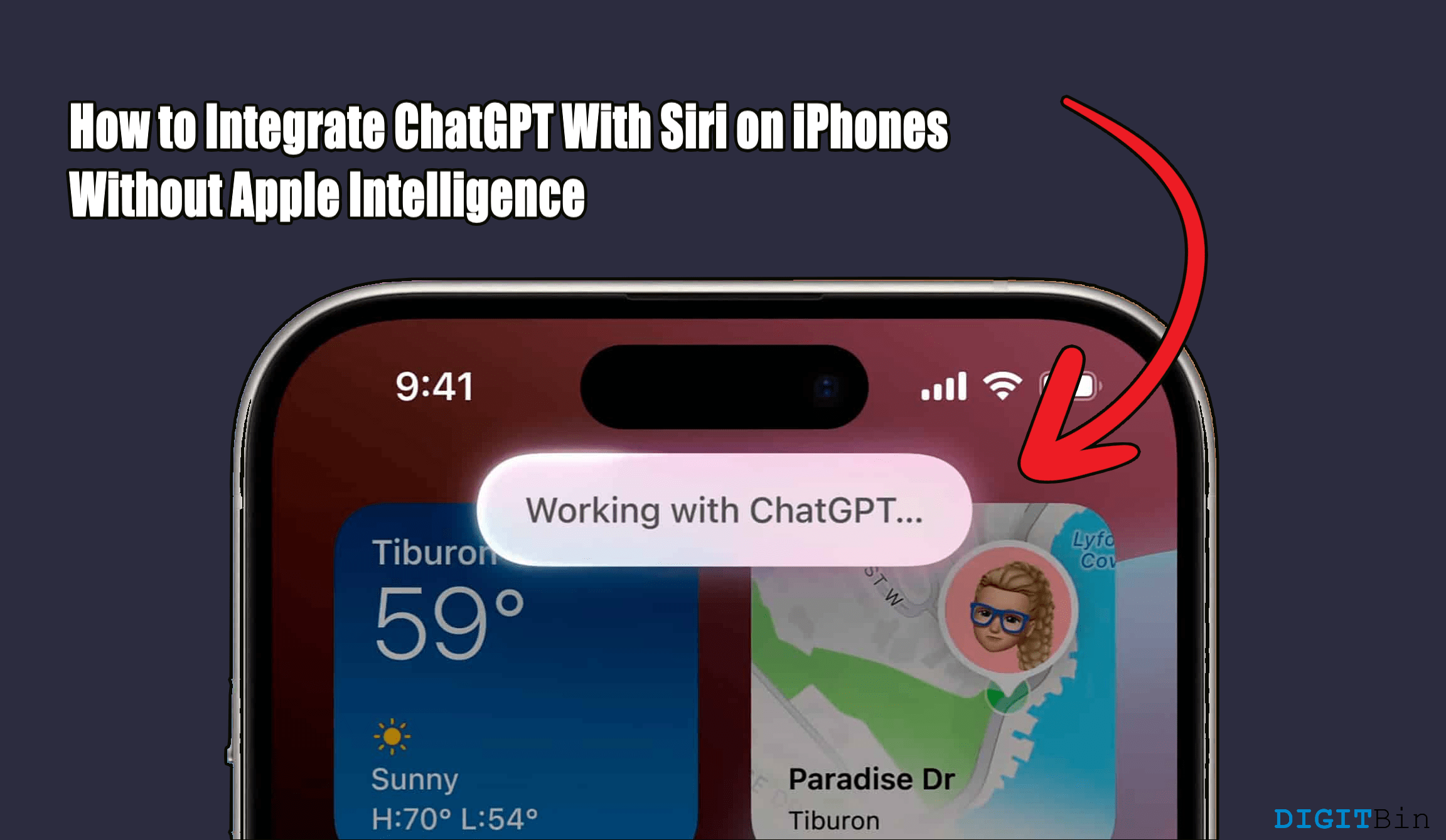
You can use ChatGPT with Siri on an iPhone without Apple Intelligence using the iPhone shortcuts feature.
Apple Intelligence surely took the AI game a step ahead for all iOS users. With its seamless integration within and beyond the local database, it can pretty much do everything with just a single command. As someone who relies on voice assistants while driving, cooking, or even just walking around the house, Apple Intelligence handles it like a charm.
However, Apple Intelligence is only available on iPhone 15 Pro and later versions. And for users like me who have an older iPhone without Apple intelligence support, it becomes difficult to switch between Siri and ChatGPT. While Siri is convenient, it often falls short when it comes to deeper or more nuanced conversations.
ChatGPT, on the other hand, is much smarter in understanding context and giving useful responses. But every time I need ChatGPT, I have to open the app separately.
I started wondering – can I somehow merge the two? Can Siri trigger ChatGPT without needing Apple’s upcoming Apple Intelligence updates? So I began testing shortcuts, browser hacks, and automation tricks. I wanted to find an easy way to make ChatGPT accessible via Siri on any iPhone. This guide is the result of that effort. If you’re in the same boat as me, then this will help you.
The collaboration of OpenAI and Apple has been in the news for a while. However, the sudden announcement of this integration came as a surprise to the majority of the users.
With this integration, users can now rely on the AI assistant for more complex queries and efficient results. Here is how to get started with the ChatGPT and Siri integration on iPhones without Apple Intelligence.
Your setup is now ready. All you need to do is launch Siri and provide the command “Ask ChatGPT”. This will automatically launch the ChatGPT assistant to process your queries. Make sure you are connected to the internet, and you can ask all your questions, and ChatGPT will come up with the most appropriate answers.
Fortunately, the ChatGPT integration with Siri is accessible even on iPhones that do not support Apple Intelligence. This functionality allows users to ask complicated questions that are further answered by ChatGPT rather than Siri.
It seamlessly integrates both platforms, offering a more diverse range of information that Siri alone cannot handle. However, being a workaround, the integration has its own pros and cons, so make sure to use it wisely to increase your productivity while avoiding the downsides.

