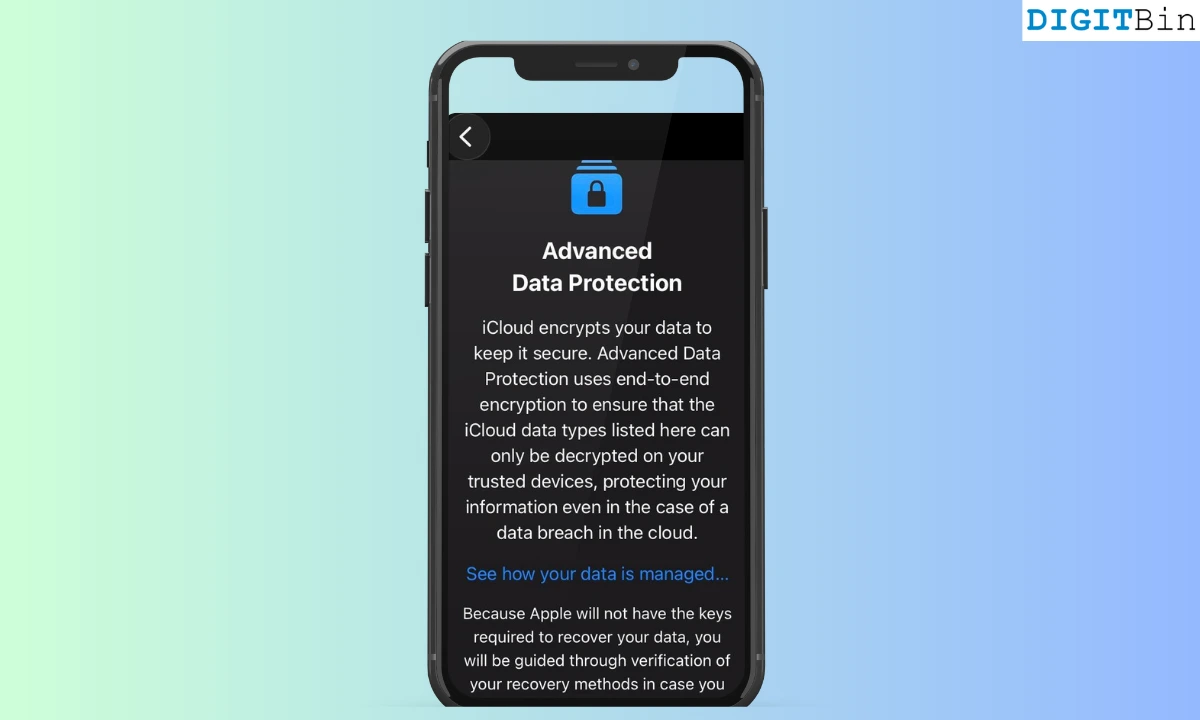
I am always concerned about the data privacy and my iPhone’s security. I use a lot of apps on my device, and it’s hard to determine the extent upto which these apps or third parties related to them have access to my data.
Similarly, I frequently worry about my expensive iPhone getting stolen. Although iOS is secured through Face ID and Touch ID, you never know if a thief may bypass them and access your files on the device.
On iOS 26, I have found several useful privacy features that provide advanced data protection, prevent brute force access to the iPhone data, and render the device useless for thieves.
Apart from Touch ID and Face ID, there are other privacy options on iOS 26 you can enable to keep your device and the data on it safe.
I found this feature to be very crucial as it offers end-to-end encryption for all the data from my iPhone synced to iCloud. The data can be decrypted on my trusted Apple devices. This feature will greatly protect your data in the event of a cloud-based data breach.
Along with the data in the iCloud drive, my Notes, device backup, Messages backup, Safari bookmarks, Photos, Shortcuts, and Voice Memos will also be encrypted.
You can turn on Advanced Data Protection in iOS 26 through the following steps.
I suggest using this feature on your iPhone if you are a public figure, celebrity, journalist, or politician. These professions stand the chance of spyware attacks or other high-end digital attacks. Turning on lockdown mode will drastically limit the functionality of your iPhone.
Most file attachment types for the Messages app will be restricted. The feature will block incoming FaceTime calls unless you’ve previously interacted with the person calling. Your iPhone cannot connect to unsecured networks, and location sharing gets disabled when you share photos. You can learn more about the iPhone Lockdown Mode.
The Lockdown Mode feature on iPhone is supported on devices running iOS 16 or later. When you enable the feature on your iPhone, it will automatically activate on your paired Apple Watch as well.
To enable it,
NOTE: You can activate Lockdown Mode separately for other Apple devices, such as iPad and Mac.
iPhones are expensive, and I always worry about someone stealing my iPhone. Well, even if they do, the time delay set up by the Stolen Device Protection feature will stop the thieves from making any changes to the device.
They need to authenticate themselves with Touch ID/Face ID to change the Apple ID password or receive a code to connect it to any PC.
Even if the thieves somehow have access to my iPhone passcode, they cannot do anything unless they authenticate themselves with Face ID or Touch ID, which is technically impossible.
To set up Stolen Device Protection on iPhone,
If the thieves restart the iPhone, the time delay will renew as well, effectively stopping them from making any changes on the device.
I have also enabled the “Erase Data” feature on my iPhone. If someone steals my iPhone and tries to brute force their way into it by guessing the passcode, they will only have ten attempts to do so.
If a thief enters the wrong passcode combination ten consecutive times, all data on the iPhone will be erased and remain inaccessible for anyone but the actual owner.
That way, if I ever find my lost iPhone, I can restore data backup from iCloud. Otherwise, I can restore it on a new iPhone. I regularly back up my data to iCloud or other devices. So, erasing all the data on my iPhone won’t cause any loss.
To enable the erase data feature after ten wrong attempts of entering the passcode on your iPhone,
If someone steals my iPhone and wants to connect it to a PC/Mac, they must connect it using a supported cable.
After connecting the cable, they must grant permission on the iPhone to validate its connection to the PC. However, they won’t have any means to unlock my iPhone, and that will prevent them from connecting it to a PC.
As the rightful owner, only I can unlock my iPhone to allow/prevent facilitating any wired accessories connection on it.
To enable this feature,
After enabling these iPhone privacy features, I no longer worry about my device getting stolen or my data being accessed by unauthorized parties. I suggest you enable these features on your iPhone as well.
While the Lockdown Mode is an extreme step and may not be applicable for every iOS user, turning on the rest of the features will greatly enhance the security of your iPhone.



